When working with Active Directory Certificate Services (AD CS), you occasionally encounter messages that initially look like errors but are actually expected behavior. Recently, while working on certificate revocation testing in my lab, I encountered exactly that situation.
I was using the Windows Certificate URL Retrieval Tool (certutil -verify -urlfetch ".\TestCertificate.cer") to verify the Authority Information Access (AIA) and CRL Distribution Point (CDP) locations of a newly issued certificate.
All CRL locations returned Verified, but the AIA verification showed something interesting: two CA certificates returned Wrong Issuer, while a third returned Verified.
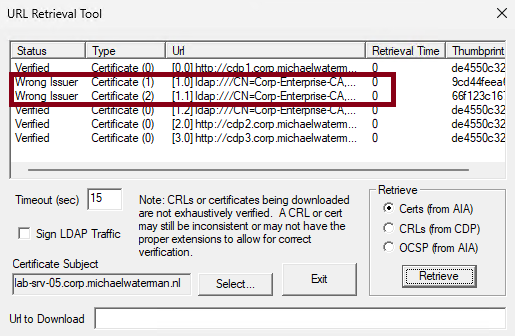
Was something wrong with my PKI configuration? Not at all. Let’s look at why this happens and how it led me to develop a small PowerShell script to investigate certificate issuance across different CA certificate generations.
Why does Windows report Wrong Issuer?
When an issuing CA is renewed, Windows AD CS allows you to renew the CA certificate using either the existing private key or a new key pair. When renewing with a new key pair, the CA receives a new public/private key pair and a corresponding CA certificate. However, the previous CA certificates don’t simply disappear.
They may still be required to validate certificates issued before the renewal. Those certificates were signed using an earlier CA private key, and their signatures must be verified using the corresponding public key.
Consequently, multiple CA certificates with the same subject name can coexist in Active Directory. In my lab, I had renewed the issuing CA twice, resulting in three CA certificate generations:
| CA Certificate Version | Certificate Thumbprint |
|---|---|
| V0.0 | 9CD44FEEA668A1A700CFB7CD12EBCC5FFCCDFA35 |
| V1.1 | 66F123C167C8B7ACE48F0012D0965322FD602950 |
| V2.2 | DE4550C322E7381E798974CA0A86E0279B83337B |
All three certificates had the same subject:
CN=Corp-Enterprise-CA, DC=corp, DC=michaelwaterman, DC=nl
They were also all present in the Active Directory AIA container.
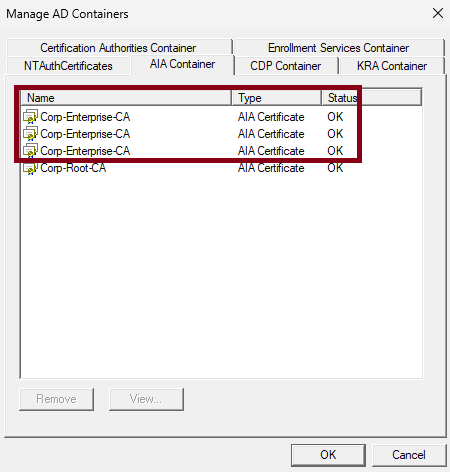
When Windows retrieves the certificates from the LDAP AIA location, it may encounter multiple candidates with the same subject name. However, only the certificate containing the appropriate public key can validate the signature of the certificate being examined. The other CA certificates are not necessarily invalid. They simply aren’t the correct issuer certificates for that particular certificate.
This explains why the URL Retrieval Tool can display Wrong Issuer for some retrieved CA certificates while successfully validating another. The message is therefore not automatically an indication of a broken PKI configuration.
It is important to distinguish this from a genuine certificate chain validation failure. If Windows cannot find a suitable issuer certificate, further investigation is required.
How does Windows identify the correct CA certificate?
Two X.509 extensions are particularly useful here:
- Subject Key Identifier (SKI): Identifies the public key contained in a certificate.
- Authority Key Identifier (AKI): Helps identify the issuer’s public key used to sign a certificate.
When a CA is renewed using a new key pair, the new CA certificate normally receives a different SKI. Certificates issued by that CA generation can contain an AKI referring to the corresponding CA key. In my case, the certificate I was testing contained the following AKI:
83cf7e84b9aa9cd464a2d9b262e7d013c5e8cf04
This matched the SKI of CA certificate V2.2. The two earlier CA certificates contained different SKIs, explaining why they weren’t suitable issuer certificates for this particular certificate. The AKI/SKI relationship is useful for identifying candidate issuer certificates, although the actual certificate signature and chain validation must still succeed.
The next question: Which certificates still depend on the older CA certificates?
This raised another interesting question. If my issuing CA has three different CA certificate generations, how can I determine which certificates were issued by each generation? More importantly, which of those certificates have not yet expired? This information is particularly useful when reviewing CA renewals, maintaining older CRL publication locations, or planning PKI lifecycle changes.
Fortunately, AD CS maintains information about issued certificates in its CA database. One of the available database columns is IssuerNameID. This column identifies the CA certificate generation associated with an issued certificate. For example, querying my lab CA returned:
| IssuerNameID | CA Certificate Version | Certificates Issued |
|---|---|---|
0 | V0.0 | 4 |
65537 | V1.1 | 1 |
131074 | V2.2 | 2 |
These values correspond to the Microsoft CA certificate version information. The high-order 16 bits represent the CA key index, while the low-order 16 bits represent the CA certificate index. For example:
0x00010001 = CA Version 1.1
And:
0x00020002 = CA Version 2.2
Querying the CA database manually
You can query the issued certificates using certutil:
certutil -view `
    -restrict "Disposition=20" `
-out "RequestID,SerialNumber,IssuerNameID,NotBefore,NotAfter"Here, Disposition=20 restricts the results to issued certificates. To retrieve only certificates issued by CA Version 1.1:
certutil -view `
    -restrict "Disposition=20,IssuerNameID=65537" `
-out "RequestID,SerialNumber,CommonName,NotBefore,NotAfter"This works well, but I wanted something a little more convenient. Ideally, I wanted to identify the available CA certificate generations, list certificates that are still within their validity period, and export the results to CSV.
So I wrote a PowerShell script.
Introducing Get-AdcsIssuerHistory.ps1
Get-AdcsIssuerHistory.ps1 is a read-only PowerShell utility that queries the AD CS database and helps identify certificates issued by different CA certificate generations. The script provides several useful functions.
1. Identify all CA certificate generations
.\Get-AdcsIssuerHistory.ps1 -ListIssuersThis lists the unique IssuerNameID values found in the CA database, together with the CA name, certificate version, and number of issued certificates.
2. Show certificates issued by a specific CA generation
For example, to retrieve certificates issued by CA Version 1.1 that are still within their validity period:
.\Get-AdcsIssuerHistory.ps1 `
    -ShowValid `
-IssuerNameID 65537For the original CA certificate, Version 0.0:
.\Get-AdcsIssuerHistory.ps1 `
-ShowValid `
-IssuerNameID 0This makes it easy to investigate individual CA certificate generations.
3. Identify valid certificates from previous CA generations
One of the more useful options is:
.\Get-AdcsIssuerHistory.ps1 -ShowValidPreviousThe script identifies the latest registered CA certificate generation using the CA configuration and locally available CA certificates, then lists certificates issued by earlier generations that have not expired. The automatically selected generation represents the latest registered generation, which should not be confused with independently verifying the CA service’s currently active signing key. If you already know the current CA generation, you can specify it explicitly:
.\Get-AdcsIssuerHistory.ps1 `
-ShowValidPrevious `
-CurrentIssuerNameID 1310744. Exclude revoked certificates
A certificate that hasn’t expired isn’t necessarily still usable. It may have been revoked. To exclude certificates recorded as revoked in the CA database, use:
.\Get-AdcsIssuerHistory.ps1 `
-ShowValidPrevious `
-ExcludeRevokedThis is useful when investigating which certificates remain candidates for use, although it doesn’t prove that those certificates are actively deployed or being used by applications.
5. Export the results to CSV
For reporting or further analysis, the results can also be exported:
.\Get-AdcsIssuerHistory.ps1 `
-ShowValidPrevious `
-ExcludeRevoked `
-ExportCsv "C:\Temp\Previous-CA-Certificates.csv"Or export certificates from one particular CA generation:
.\Get-AdcsIssuerHistory.ps1 `
    -ShowValid `
-IssuerNameID 65537 `
-ExportCsv "C:\Temp\CA-Version-1.1.csv"6. Generate a summary
Finally, you can generate an overview of certificate issuance across the different CA generations:
.\Get-AdcsIssuerHistory.ps1 -SummaryThis provides a convenient starting point for reviewing the CA database and understanding the distribution of issued certificates.
Why should certificate revocation care?
There is another important aspect to consider. When an issuing CA is renewed using a new key pair, certificates issued under previous CA keys may continue to require revocation information associated with those earlier keys. Depending on the CA configuration and certificate extensions, this may involve different CRL files or publication paths. For example, an AD CS environment may contain CRLs such as:
Corp-Enterprise-CA.crl
Corp-Enterprise-CA(1).crl
Corp-Enterprise-CA(2).crl
These are examples of CA-generation-specific CRL filenames. The exact naming and publication behavior depend on the CA configuration. Simply publishing the latest CRL does not necessarily provide revocation information for certificates issued using older CA keys.
Before removing older CA certificates or CRL publication locations, it is therefore important to understand which certificates still depend on them. That is precisely where an inventory of issued certificates by CA generation becomes useful.
One important distinction: a certificate that has not expired is not necessarily actively deployed. The script identifies certificate records and their validity or revocation status; determining actual application usage requires additional investigation.
The script can be downloaded from my Github, or directly using this link.
Final thoughts
What started as a seemingly unexpected Wrong Issuer message turned into a useful investigation of CA certificate renewals and their impact on issued certificates. Multiple CA certificates with the same subject name are not unusual in AD CS environments, particularly after renewals involving new key pairs.
Seeing Wrong Issuer for an older CA certificate during AIA retrieval is not necessarily a problem, provided the correct issuer certificate can be found and the certificate chain validates successfully. The more interesting question is understanding which certificates still depend on those older CA generations.
With Get-AdcsIssuerHistory.ps1, I now have a straightforward way to answer that question directly from the CA database. The script is read-only, supports CSV export, and has been tested against my Windows Server 2025 AD CS lab.
I hope this is useful for anyone working with AD CS, CA renewals, or certificate lifecycle management. As always, feedback, suggestions, and improvements are welcome!
Leave a Reply