
Another blog on certificates! While working on my Certificate Enrollment Services lab, I wanted a straightforward way to request a machine certificate without having to repeat the same manual steps each time. A domain-joined server should be able to use Active Directory enrollment policy, a workgroup machine should be able to use CEP and CES, and both should handle an application certificate with a supplied subject and one or more Subject Alternative Names. If a certificate manager needs to approve the request, I also want the script to wait, retrieve the certificate and install it when it becomes available.
That sounds simple enough. However, once I started testing the complete process, a few details deserved a closer look. A populated SAN does not automatically mean the certificate has a subject, supplying a password as a normal string is different from supplying a credential, and reaching a timeout should not mean starting the entire request again. In this article, I’ll walk through the script and the things I encountered while testing it.
The complete script is available on my GitHub as Request-MachineCertificate.ps1. Download it to the machine that needs the certificate and replace the template names, DNS names and service URLs in the examples with the values used in your own environment.
Starting with the Windows enrollment client
The script uses the built-in Windows PKI module and its Get-Certificate cmdlet. There is no separate PowerShell module to install for this workflow. The script adds parameter validation, subject handling, an approval wait loop and a way to resume a pending request around the Windows enrollment client.
The target store is always Cert:\LocalMachine\My, which corresponds to Local Computer → Personal in the Certificates console. The private key is created locally during enrollment. Once the certificate is issued, the script retrieves and installs it, verifies that the installed certificate has an associated private key, and returns the certificate object.
Run it locally from an elevated Windows PowerShell 5.1 session. The script checks whether the current process is running as an administrator before attempting enrollment. That check concerns access to the local machine certificate store, it does not grant permission to request a certificate from the CA. The enrollment identity still needs the appropriate permissions.
There is also an explicit check for the Desktop edition of PowerShell. Although #Requires -Version 5.1 means a minimum version, removing the Desktop check would only allow PowerShell 7 to start the script. It would not establish compatibility with the PKI module and the pending-request retrieval flow. For this version, Windows PowerShell 5.1 is the supported runtime.
Preparing the certificate template
For my tests, I used a template based on default WebServer template but with all the changes I’ve talked about in my CEP/CES series. The internal template name is passed to the script, rather than the display name shown in the template console. A reader using another environment should substitute an appropriate template published on their own Enterprise CA.
To request a custom subject and SANs, the template needs to permit that information to be supplied in the request. For the approval tests, it also needs to require CA certificate manager approval. Those are separate settings: supplying a SAN does not automatically make a certificate request pending. That distinction is important when interpreting the script’s behavior. If the CA immediately issues the certificate, the script installs it and finishes. If the CA returns a pending response, the script starts waiting. The same wait logic applies to a pending request without SANs.
Make sure the relevant enrollment identity has Read and Enroll permissions on the template, along with the required CA permissions. Local administrator privileges alone are not sufficient. For CEP and CES, also check DNS resolution, HTTPS connectivity, certificate-chain trust and the authentication methods offered by both services.
Requesting a certificate through Active Directory
The simplest request only requires a template name:
.\Request-MachineCertificate.ps1 -Template ComputerWithout a CEP URL, the script explicitly selects the applicable Active Directory enrollment policy using ldap:. This makes the selection predictable even if another enrollment policy has been configured as the default on the machine.
Direct AD enrollment uses the normal domain enrollment path, it does not require a CEP or CES server but is tested with it, so it should work.
Without a supplied subject or SAN, subject construction remains controlled by the template. This is useful for a template that builds the certificate identity from Active Directory. Authentication uses the Windows integrated enrollment behavior (kerberos), so there is no username or password parameter in this example.
Supplying a SAN and filling the subject
For an application certificate, I can supply a DNS name myself:
.\Request-MachineCertificate.ps1 `
    -Template RequestLabActiveDirectoryTLSCertificate `
-SAN 'test.corp.michaelwaterman.nl'During the initial tests, the SAN was populated correctly, but the certificate subject remained empty. The reason was straightforward: supplying DNS names to the enrollment cmdlet populates the SAN extension, while the subject is a separate input. I therefore added a default to the script, if SANs are supplied without an explicit SubjectName, the first SAN is also requested as the Common Name. For the command above, the requested subject becomes CN=test.corp.michaelwaterman.nl, and the SAN contains test.corp.michaelwaterman.nl. Both values are supplied during enrollment, subject to what the template and CA permit. Multiple SANs are passed as separate strings:
.\Request-MachineCertificate.ps1 `
-Template RequestLabActiveDirectoryTLSCertificate `
-SAN 'app.corp.michaelwaterman.nl',
'alias.corp.michaelwaterman.nl',
'api.corp.michaelwaterman.nl'The first entry becomes the CN unless I override it. The script trims surrounding whitespace and removes duplicate names. It supports DNS SANs only, there is no support in this version for IP address, UPN or email SAN types.
I also tested a request containing ten DNS SAN entries, which worked successfully in the lab. The script does not impose an explicit maximum number of entries, but that should not be interpreted as an unlimited guarantee for every CA or application. A larger name list produces a larger request and certificate, and the systems processing them may have their own limits.
Choosing a different subject
When I want the subject to differ from the first SAN, I can specify it explicitly:
.\Request-MachineCertificate.ps1 `
-Template RequestLabActiveDirectoryTLSCertificate `
-SubjectName 'CN=app.corp.michaelwaterman.nl' `
-SAN 'test.corp.michaelwaterman.nl'One small mistake during testing produced a rather specific error. I supplied app.corp.michaelwaterman.nl directly to SubjectName, without the CN= prefix. Windows rejected it with CRYPT_E_INVALID_X500_STRING, because SubjectName expects an X.500 distinguished name rather than a bare hostname. Including CN= resolved that issue. A more complete distinguished name can also be supplied, for example CN=app.corp.example,OU=Applications,O=Example,C=NL, provided it is valid and permitted by the template.
An explicit subject does not automatically add that name to the SAN list. In the example above, app is the CN and test is the DNS SAN. If app also needs to be present as a DNS SAN, include it in the SAN array.
Selecting a CEP endpoint
To use an explicit Certificate Enrollment Services, I supply a CEP URL:
.\Request-MachineCertificate.ps1 `
    -Template RequestLabActiveDirectoryTLSCertificate `
-SAN 'test.corp.michaelwaterman.nl' `
-CepUrl 'https://cep01.corp.michaelwaterman.nl/ADPolicyProvider_CEP_Kerberos/service.svc/CEP'The URL is the policy endpoint. CEP provides enrollment policy and information about the available enrollment services, CES handles the actual enrollment through the web-service path. The script therefore accepts a CEP URL, rather than a manually selected CES URL. See my series on CEP/CES for more info on the topic.
With no explicit credentials, this example uses Windows integrated enrollment authentication against a Kerberos endpoint. The underlying domain, DNS, SPN and service configuration still need to be correct. The script relies on Windows authentication behavior and does not independently verify which protocol was negotiated.
The endpoint paths shown here are examples. Use the actual HTTPS URL configured in your deployment, and make sure the CES endpoints advertised in the policy are reachable from the requesting machine.
Requesting from a workgroup machine
For a workgroup machine, the username/password endpoints provide a way to use explicit domain credentials:
$credential = Get-Credential

.\Request-MachineCertificate.ps1 `
    -Template RequestLabActiveDirectoryTLSCertificate `
    -SAN 'test.corp.michaelwaterman.nl' `
    -CepUrl 'https://cep01.corp.michaelwaterman.nl/ADPolicyProvider_CEP_UsernamePassword/service.svc/CEP' `
-Credential $credentialWriting the certificate to LocalMachine does not require the requesting computer to be domain joined when a supported CEP/CES path and appropriate credentials are available. However, the machine still needs to trust the HTTPS server certificate chains and reach the service names. Successful authentication to CEP is only part of the process, the discovered CES endpoints must support the selected authentication method as well.
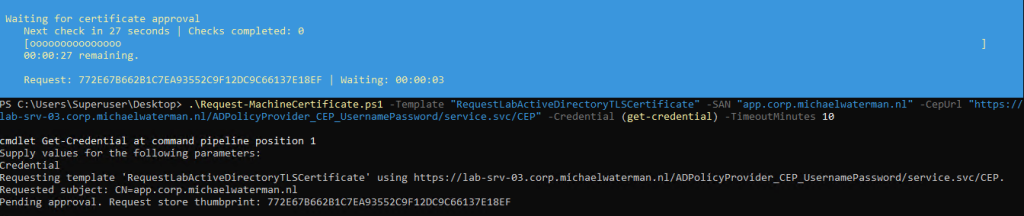
The script passes the credential to both the initial request and subsequent retrieval attempts. It does not write the supplied username or password to a file. For a new request, explicit username/password credentials require a CEP URL, the script does not treat them as an alternative login for direct AD enrollment.
Passing a password through a variable
Instead of a Credential object, I can use UserName and Password. If I supply only UserName, the script prompts for the password with that username prefilled. When I supply Password as well, it must be a SecureString.
This became apparent when a normal string passed to -Password produced a parameter-conversion error. The parameter is deliberately typed as System.Security.SecureString. To create the variable interactively, use:
$password = Read-Host 'Enrollment password' -AsSecureString

.\Request-MachineCertificate.ps1 `
    -Template RequestLabActiveDirectoryTLSCertificate `
    -SAN 'test.corp.michaelwaterman.nl' `
    -CepUrl 'https://cep01.corp.michaelwaterman.nl/ADPolicyProvider_CEP_UsernamePassword/service.svc/CEP' `
    -UserName 'CORP\enrollmentuser' `
-Password $passwordFor a disposable lab test, a variable can also be created without prompting:
$password = ConvertTo-SecureString 'REPLACE-WITH-PASSWORD' -AsPlainText -ForceThat satisfies the parameter type, but the original password remains readable in the script or command history. Converting the literal into a SecureString does not remove that exposure. Also, choose either Credential or UserName and Password, the script rejects a combination of both approaches.
Waiting for approval
When the CA leaves the request pending, the script prints the thumbprint of the local pending request and starts polling. The default interval is 30 seconds. A progress bar displays a live countdown until the next check, the elapsed wait and the number of completed checks. Each retrieval attempt is also printed with a timestamp. For a shorter test cycle, I can change the interval and set an approval-wait limit:
.\Request-MachineCertificate.ps1 `
    -Template RequestLabActiveDirectoryTLSCertificate `
    -SAN 'test.corp.michaelwaterman.nl' `
    -PollIntervalSeconds 10 `
-TimeoutMinutes 5The interval accepts values from 5 to 3600 seconds. TimeoutMinutes defaults to zero, meaning that the script waits indefinitely. The timeout measures the approval-wait phase after the initial enrollment response; it is not a timeout for individual network calls.
On the CA, a certificate manager can locate the request under Pending Requests and issue it through All Tasks → Issue. After issuance, the script’s next retrieval attempt obtains and installs the certificate. It does not approve the request itself, and it does not create another CSR during polling.
Resuming after a timeout
Reaching the timeout stops the wait, but the local request and private key are retained. The error message includes the pending request thumbprint, allowing me to resume on the original machine:
.\Request-MachineCertificate.ps1 `
-PendingRequestThumbprint 'F47AD2BFAF82ACA16005569392DB3D5D40696024'For a username/password request, I supply credentials again:
.\Request-MachineCertificate.ps1 `
-PendingRequestThumbprint 'F47AD2BFAF82ACA16005569392DB3D5D40696024' `
-Credential (Get-Credential) `
-TimeoutMinutes 60There is no template, SAN, subject or CEP URL in the resume command. The stored request contains the original enrollment information. Its thumbprint identifies the object in Cert:\LocalMachine\Request, it is not the CA’s numeric Request ID or the thumbprint of the final certificate. If the console wraps the thumbprint over two lines, copy it back as one continuous value.
Resuming starts a new approval-wait timer. It retrieves the existing request and waits again if needed, without submitting a replacement. It also cannot change the subject or SANs of the original CSR. If those values were wrong, that requires a separate request.
Clearing the local enrollment policy cache
While changing templates or enrollment-service configuration in the lab, I sometimes need the requesting server to retrieve policy again. The local enrollment policy cache can be cleared from an elevated console:
certutil -f -policyserver * -policycache deleteFor the current user’s policy cache, add -user:
certutil -user -f -policyserver * -policycache deleteThese commands target the enrollment policy cache. They do not approve a pending request or modify its subject and SANs. After clearing the cache, repeat policy discovery or the relevant enrollment operation.
Checking the installed certificate
The script returns the installed certificate object, so I can capture it rather than only reading the console output:
$certificate = .\Request-MachineCertificate.ps1 `
    -Template RequestLabActiveDirectoryTLSCertificate `
    -SAN 'test.corp.michaelwaterman.nl'

$certificate |
Select-Object Subject, Thumbprint, NotAfter, HasPrivateKeyI can inspect the SAN extension and certificate chain in the Local Computer certificate console as well. Installation in the Personal store completes the enrollment workflow, but binding the certificate to IIS or another application remains a separate step.
The lab tests confirmed SAN population, approval waiting, a request containing ten DNS SANs and timeout/resume behavior. The subject and password errors were useful reminders that the enrollment inputs have specific formats. With those details handled, I now have one script to carry a machine certificate request from submission through approval to local installation.
The script includes full PowerShell help, parameter descriptions and additional examples:
Get-Help .\Request-MachineCertificate.ps1 -Full
Get-Help .\Request-MachineCertificate.ps1 -ExamplesConclusion
What started as a simple certificate request script became a useful way to handle the complete enrollment process, including the part where we have to wait for someone to approve the request. The lab tests also highlighted a few easily overlooked details and a learning curve: the subject and SAN are separate inputs, credentials need the correct format, and a timeout does not mean the original request is lost, just to name a few.
For me, the most useful result is being able to submit a request, leave it waiting, and resume it later without creating another CSR. Whether you use Active Directory enrollment or CEP and CES, I hope this script saves you a few manual steps and makes the process easier to follow. Give it a try in your lab, and feel free to share your findings. Until next time!
References
Request-MachineCertificate.ps1 on GitHub
Microsoft Get-Certificate documentation
Microsoft certutil documentation
Leave a Reply