It’s always DNS, isn’t it? Well, at least that’s what we IT folks like to say whenever something doesn’t work as expected. And more often than we’d like to admit, we’re right.
I regularly use AutomatedLab to build lab environments for testing, research, and experimenting with new technologies. Usually, it’s a matter of running a PowerShell script, grabbing a cup of coffee, and coming back to a fully functional environment. Sometimes, however, things don’t quite go according to plan. While troubleshooting a failed Active Directory deployment, I stumbled upon something that didn’t make much sense at first. With internet connectivity unavailable, everything worked. Restore internet connectivity, and the deployment got stuck. Wait, what? I really dislike this kind of inconsistent behavior. You’re a computer. Do or do not. There is no try. (See what I did there?)
What followed was a full day of building and destroying Active Directory forests, analyzing network traffic, questioning my own assumptions, and even getting sidetracked by an unexpected Windows Server 2025 issue. And yes, quite a few more cups of coffee.
As it turns out, the problem wasn’t that DNS wasn’t working. The problem was that it was working a little too well. Let’s dive in!
How it all started
For those unfamiliar with AutomatedLab, it’s a PowerShell-based framework that allows you to deploy entire lab environments with relatively little effort. I’ve been using it for quite some time, and it has saved me countless hours of manually installing and configuring virtual machines.
While preparing a new lab environment for some PKI-related research, I needed an Active Directory forest consisting of three domains spread across two domain trees. Nothing particularly complicated, right? However, while the root domain controller installed successfully, the deployment got stuck promoting the other two domain controllers. Interestingly enough, subsequent deployments didn’t always exhibit the same behavior. Time to dust of those PFE skills again and do some troubleshooting!
First, a little about my lab
Before diving into the troubleshooting, let me give you a quick overview of my lab environment. I’m running Hyper-V with a virtual pfSense firewall providing internet connectivity to an isolated lab network (192.168.66.0/24). Using AutomatedLab, I deploy three domain controllers running Windows Server 2025, forming a single Active Directory forest with two domain trees.
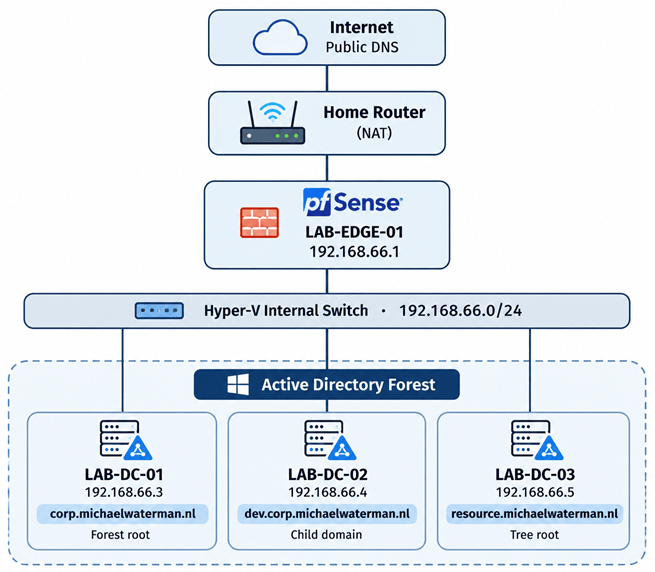
| Domain controller | Domain | IP address |
|---|---|---|
| LAB-DC-01 | corp.michaelwaterman.nl | 192.168.66.3 |
| LAB-DC-02 | dev.corp.michaelwaterman.nl | 192.168.66.4 |
| LAB-DC-03 | resource.michaelwaterman.nl | 192.168.66.5 |
All three machines use the pfSense firewall (192.168.66.1) as their default gateway. Now, as you may have noticed, I’m using subdomains of my publicly registered domain, michaelwaterman.nl, for my internal Active Directory environment. Keep that little detail in mind, as it will become rather important later on.
Wait, it works without internet?
While troubleshooting the failed deployments, I stumbled upon something rather interesting. With internet connectivity unavailable, AutomatedLab successfully deployed all three domain controllers. I repeated the deployment, and again, everything worked as expected.
After restoring internet connectivity through pfSense, I ran the exact same deployment again. This time, the root domain controller installed successfully, but the deployment got stuck promoting the remaining two domain controllers. Same deployment script, same operating system images, same network configuration. The only intentional change was restoring internet connectivity.
Now, why would access to the internet interfere with the deployment of an entirely internal Active Directory environment? My first suspect?
DNS, because it’s always DNS!
Let’s follow the packets
To find out what was happening, I started capturing DNS traffic on the LAN interface of my pfSense firewall during the deployments. During the two successful deployments, I noticed hundreds of DNS queries destined for public DNS servers, including the DNS root servers. Among them were queries for records belonging to my internal Active Directory namespace. For example:
_ldap._tcp.dc._msdcs.corp.michaelwaterman.nl
If you’re familiar with Active Directory, you’ll recognize this as an SRV record used to locate domain controllers. But why would my DNS servers be looking for internal Active Directory records on the internet?
During the initial deployments, none of these queries received a response. With internet connectivity restored, however, things became a little more interesting. Public DNS servers were now responding to queries for my internal namespace. One response in particular caught my attention. A public authoritative DNS server returned a response for the domain controller SRV record with a response code of NOERROR, but with zero answers.
No error, but no answer? And more importantly, what would Windows do with such a response? As it turns out, receiving a DNS response isn’t necessarily a good thing.
A wildcard in the mix
Things got even more interesting when I started querying public DNS servers directly for my internal domain names. To my surprise, all three resolved to the same public IP address: 5.254.117.209, which is the public DNS server of my hosting provider. To rule out the possibility that I had accidentally created these records in my public DNS zone, I queried a completely made-up hostname:
nslookup test-839271.michaelwaterman.nl 1.1.1.1
And guess what? The same IP address came back! My public DNS zone contains a wildcard record. This means that queries for otherwise undefined names can result in a perfectly valid DNS response pointing to a public IP address.
From a DNS protocol perspective, there’s nothing wrong with that. From an Active Directory perspective, however, receiving a public IP address when you’re trying to locate an internal domain controller is an entirely different story.
When a DNS answer is worse than no answer
Before I continue, let’s take a closer look at DNS responses. Understanding the differences between them is key to understanding what went wrong in my lab. DNS uses response codes (RCODEs) to indicate the outcome of a query. However, the response code alone doesn’t necessarily tell the whole story.
| Response | Meaning |
|---|---|
| NOERROR (0) | The query was processed successfully and may contain the requested records. |
| NODATA | A NOERROR response without the requested record type. |
| NXDOMAIN (3) | The queried domain name does not exist. |
| SERVFAIL (2) | The DNS server was unable to complete the query successfully. |
| Timeout | No DNS response was received within the applicable timeout period. |
Technically speaking, NODATA isn’t a separate response code, and a timeout isn’t a DNS response at all. These differences are important. Both NXDOMAIN and NODATA responses can be cached, a mechanism known as negative caching. Subsequent queries may therefore receive the same negative result without contacting the authoritative DNS server again.
In my lab, the public DNS servers were doing exactly what they were supposed to do. They returned valid negative responses for internal Active Directory SRV records and positive responses for names matching the public wildcard record. The problem wasn’t that DNS was malfunctioning. It was that the answers came from the wrong DNS namespace.
But having multiple DNS servers configured should take care of that, right? Well, not quite.
Surely Windows will try the other DNS server?
Having multiple DNS servers configured provides redundancy, right? Absolutely, but perhaps not in the way you might expect. First, we need to distinguish between two components: the Windows DNS Client and the Windows DNS Server service.
The DNS Server service can use forwarders or root hints to resolve names outside its authoritative zones. During the deployment of my domain controllers, this allowed queries for internal records that could not yet be resolved locally to reach public DNS servers.
The DNS Client, on the other hand, uses the DNS servers configured on its network interface. Here’s where things get interesting.
As Microsoft explains in its Best practices for DNS client settings in Windows Server, receiving an incorrect but authoritative response does not cause the DNS Client to switch to another DNS server.
When the preferred DNS server doesn’t respond, however, Windows can query an alternate DNS server. Microsoft describes this behavior in more detail in its article on DNS client resolution timeouts. See the difference?
In my lab, one DNS server could return a negative response obtained from public DNS, while another already held the correct internal Active Directory record. Having multiple DNS servers doesn’t guarantee that you’ll receive the answer you’re looking for, kinda like Obi-Wan, these are not the records you’re looking for…
So, why does AutomatedLab get stuck?
Now that we understand the underlying DNS behavior, let’s put the pieces together. To understand what’s happening during the deployment, we need to look at two independent DNS processes, each with its own timeout and retry mechanisms. Just because a DNS server is reachable doesn’t necessarily mean it’s able to provide a timely response.
Step 1 – Deploying the forest root domain controller
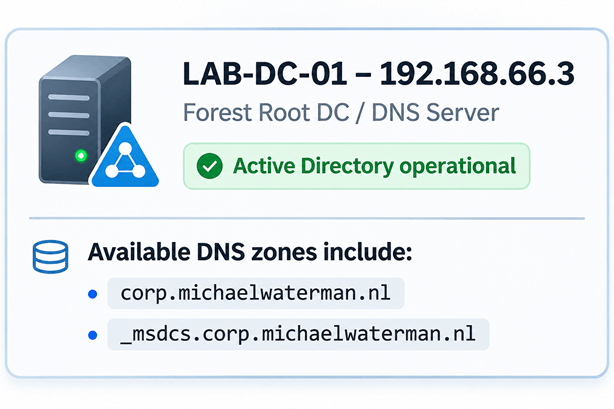
AutomatedLab first installs LAB-DC-01 as the forest root domain controller. Once this process is complete, the DNS Server service is operational and contains the required Active Directory DNS zones and records.
Step 2 – Deploying the remaining domain controllers
AutomatedLab then proceeds with the installation of LAB-DC-02 and LAB-DC-03. During this phase, I observed the following DNS Client configuration:
| DNS setting | LAB-DC-02 | LAB-DC-03 |
|---|---|---|
| Preferred DNS | 192.168.66.4 | 192.168.66.5 |
| Alternate DNS | 192.168.66.3 | 192.168.66.3 |
Notice anything interesting? Both machines point to themselves as their preferred DNS server. The DNS Server services are already installed and running, but the machines aren’t operational domain controllers. At this point, their local DNS servers don’t contain the required Active Directory DNS zones yet. During my failed deployments, there were no configured forwarders, and only root hints enabled.
Step 3 – What happens inside the local DNS server?
Let’s use LAB-DC-02 as an example. To promote the machine to a domain controller, Windows needs to locate an existing domain controller in the forest. DC Locator initiates DNS queries through the Windows DNS Client, including a query for the following SRV record:
_ldap._tcp.dc._msdcs.corp.michaelwaterman.nl
The DNS Client sends this query to its preferred DNS server, which, in this case, is the local DNS Server service. The local DNS server then goes through a process that can be simplified as follows:
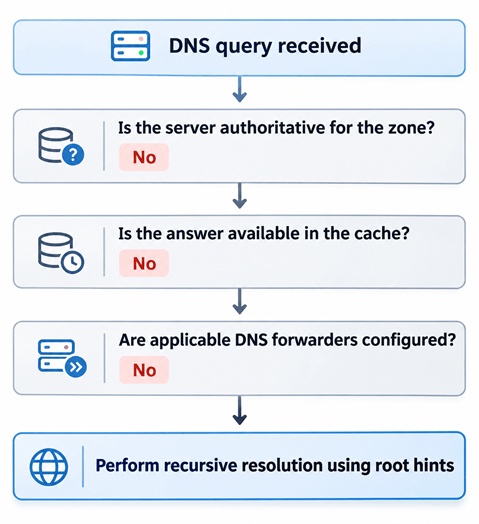
The important thing to understand here is that the local DNS server hasn’t returned an answer to the DNS Client yet. The original query is still being processed. The DNS server first attempts to find the answer by performing iterative queries through the public DNS hierarchy.
Step 4 – Why doesn’t the local DNS server simply query LAB-DC-01?
Surely, we’ve already configured LAB-DC-01 as the alternate DNS server, so why isn’t it being consulted? This is where we need to distinguish between the DNS Client configuration and the DNS Server configuration. These are two entirely independent configurations. Let’s take another look at LAB-DC-02.
| Component | Configuration |
|---|---|
| DNS Client – Preferred DNS | 192.168.66.4 (itself) |
| DNS Client – Alternate DNS | 192.168.66.3 (Root DC) |
| DNS Server – Forwarders | None |
| DNS Server – Root hints | Enabled |
Configuring LAB-DC-01 as the alternate DNS server on the network adapter doesn’t automatically configure it as a forwarder for the local DNS Server service. The local DNS Server service doesn’t know LAB-DC-01 as a forwarder at this stage. Instead, it follows its own configuration and attempts to resolve the requested record through the public DNS hierarchy, as this is the only resolution path available to it.
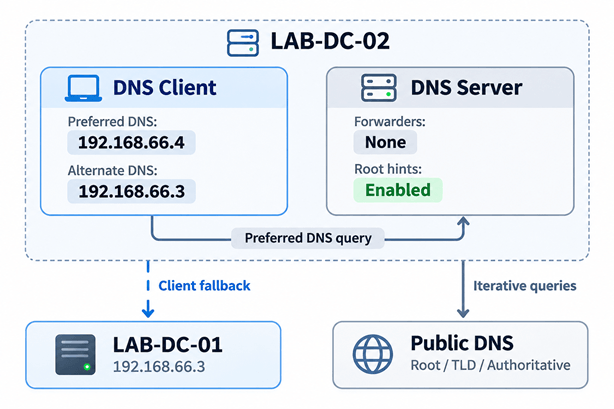
See the difference? The DNS Client knows about LAB-DC-01 as an alternate DNS server, but the DNS Server service follows its own resolution configuration.
Step 5 – What happens when the local DNS server doesn’t respond in time?
And here’s the interesting part. While the local DNS server is attempting recursive resolution, the DNS Client has its own timer running. According to Microsoft’s documentation on DNS client resolution timeouts, a Windows DNS Client configured with two DNS servers follows the default timeout behavior shown below when no response is received.
| Elapsed time | DNS Client action |
|---|---|
| 0 seconds | Client queries the first DNS server of the list |
| 1 second | If no response is received after 1 second, client queries the second DNS server of the list |
| 2 seconds | If no response is received after 1 more second, client queries again the second DNS server of the list |
| 4 seconds | If no response is received after 2 more seconds, client queries all the servers in the list at the same time |
| 8 seconds | If no response is received after 4 more seconds, client queries all the servers in the list at the same time |
| 10 seconds | If no response is received after 2 more seconds, client stops querying |
Think about that for a moment…
The DNS Client doesn’t wait for the local DNS server to complete its entire recursive resolution process. After just one second, the DNS Client can decide to query LAB-DC-01 while the local DNS server is still attempting to contact public DNS servers. There doesn’t have to be anything wrong with the local DNS server. It can be perfectly reachable and operational, yet unable to provide an answer within the time the DNS Client is willing to wait before consulting another server. Let’s compare the two scenarios.
Scenario A – Internet connectivity is available
With internet connectivity available, the local DNS server can successfully contact the public DNS infrastructure. The public authoritative DNS server returns a negative response (NODATA) for the requested Active Directory SRV record. The local DNS server can cache this result and return it to the DNS Client.
If this response arrives before the DNS Client’s fallback timer expires, the alternate DNS server isn’t consulted for that query.
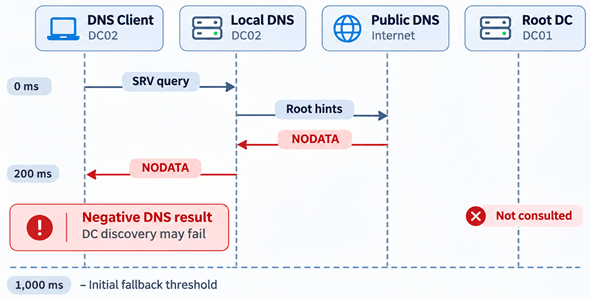
The ironic thing is that LAB-DC-01 already contains the correct SRV record. However, because the DNS Client received a valid negative response from its preferred DNS server, it has no reason to consult the alternate DNS server for a different answer. I confirmed these conflicting DNS responses during one of my failed deployments on LAB-DC-03.
| Test | Result |
|---|---|
SRV query directly to local DNS (192.168.66.5) | Negative DNS response |
SRV query directly to Root DC (192.168.66.3) | Correct SRV record |
| SRV query using the default DNS Client configuration | Negative DNS response |
| DC Locator | Error 1355 (ERROR_NO_SUCH_DOMAIN) |
| DC Locator after configuring LAB-DC-01 as the only DNS server | Successful |
Temporarily pointing the DNS Client exclusively to LAB-DC-01 restored successful domain controller discovery, although it didn’t recover the already stalled deployment.
Scenario B – Internet connectivity is unavailable
Now, let’s look at what happens when internet connectivity is unavailable. The local DNS server receives the exact same SRV query and attempts to resolve it using its root hints. This time, however, it doesn’t receive a response from the public DNS infrastructure. Meanwhile, the DNS Client’s timer is still running.
After one second without a response from its preferred DNS server, the DNS Client can query the alternate DNS server, LAB-DC-01. Since LAB-DC-01 is authoritative for the requested DNS zone, it can return the correct SRV record without having to consult any external DNS servers.
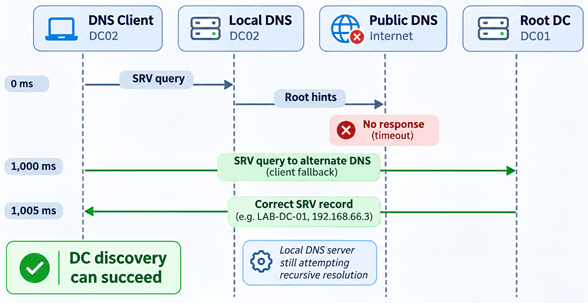
Notice that the local DNS server is still operational and reachable. It simply hasn’t returned an answer yet. We’re effectively dealing with a race between receiving a public DNS response and the expiration of the DNS Client’s fallback timer.
Without internet connectivity, the absence of a public DNS response gives the DNS Client an opportunity to consult the alternate DNS server before the local DNS server completes its recursive resolution attempt. This provides an explanation for why my deployments succeeded without internet connectivity.
Ironically, if public DNS resolution had consistently taken a little longer, I might never have encountered this problem in the first place. The Windows DNS Client would have had the opportunity to consult its alternate DNS server and potentially receive the correct answer before the public DNS response arrived.
Who would have thought that faster DNS resolution could actually be a disadvantage? Sigh…
Step 6 – Finding a domain controller isn’t everything
During another failed deployment, I discovered something equally interesting. DC Locator successfully discovered LAB-DC-01. However, during the subsequent domain controller promotion process, I captured a public DNS response for the following hostname:
lab-dc-01.corp.michaelwaterman.nl
Instead of returning the internal IP address of 192.168.66.3, the public DNS response contained 5.254.117.209. Just 21 seconds later, the domain controller promotion process reported an RPC error (1722 – The RPC server is unavailable).
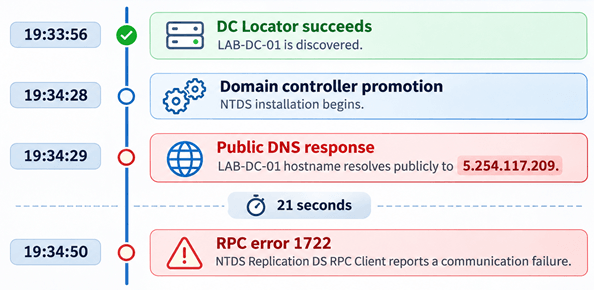
Although my DNS capture couldn’t establish the actual destination of the failed RPC connection, this highlights another important distinction. Successfully locating a domain controller doesn’t necessarily guarantee successful communication with that domain controller.
So, is AutomatedLab broken?
No. The combination of a DNS Client configuration, an incomplete Active Directory DNS infrastructure, and access to public DNS creates a situation in which the underlying Windows domain controller promotion process can fail. Meanwhile, AutomatedLab keeps waiting for that process to complete.
The fundamental problem isn’t that the local DNS server is unavailable. Quite the opposite, actually.
A fast but functionally incorrect DNS response can be more disruptive than a slow response that gives the DNS Client an opportunity to consult an alternate DNS server.
An unexpected visitor called LA57
Just when I thought I had figured out what was going on, Windows Server 2025 decided to throw another variable into the mix. Of course it would do this…
During a few of my deployments, domain controller promotion failed because Windows reported that a restart was required. But why? These were freshly deployed virtual machines! After digging through the Component-Based Servicing (CBS) logs, I discovered that a scheduled task called La57Cleanup had executed during the deployment.
LA57 refers to five-level paging, a processor feature that extends the virtual address space from 48 to 57 bits. Sounds fancy right? I had to look that one up as well. In my lab, the cleanup task initiated the removal of LA57-related Windows components, resulting in a pending reboot that interfered with domain controller promotion. So much for isolating a single variable!
To eliminate this interference from my subsequent experiments, I removed the scheduled task from the base virtual hard disk used by AutomatedLab. Please note that this was a controlled modification of my lab image for research purposes, not a recommendation for production environments. With that unexpected complication out of the way, I could finally concentrate on the problem I originally set out to investigate.
Back to DNS!
Let’s block DNS and see what happens
By now, I had a pretty good understanding of what was going wrong. But understanding a problem and actually solving it are two different things. What if I could prevent my internal DNS servers from receiving responses from public DNS servers without taking away internet connectivity altogether? To test this theory, I created a relatively simple firewall rule on pfSense.
The rule silently blocks outbound DNS traffic (both TCP and UDP port 53) from my lab network to destinations outside that network. Internal DNS communication between the domain controllers remains unaffected. With the firewall rule in place, I destroyed the lab environment and started another deployment. And guess what? It worked! Of course, one successful deployment doesn’t prove much, so I repeated the experiment.
| Experiment | External DNS | Deployment result | Duration |
|---|---|---|---|
| Run 4 | Blocked | Successful | 30m 18s |
| Run 5 | Blocked | Successful | 29m 44s |
In both cases, all three domain controllers were successfully promoted. Active Directory replication, internal DNS resolution, and domain controller discovery were subsequently verified. External IP connectivity was still available, but conventional DNS resolution through public DNS servers was effectively blocked.
So, problem solved?
Well, not quite. Blocking external DNS also prevents the resolution of legitimate public domain names. That’s not particularly useful when you want your lab machines to download updates or access online resources. What I really needed was a way to prevent public DNS responses for my internal Active Directory namespaces while allowing everything else to resolve normally.
Can we be a little more selective?
Rather than blocking all external DNS traffic, I wanted to selectively prevent public DNS responses for my internal Active Directory namespaces while allowing legitimate public DNS queries to succeed. Fortunately, pfSense already contains everything I need to accomplish this: a DNS resolver called Unbound and the ability to transparently redirect network traffic using Network Address Translation (NAT). The solution consists of three steps.
Step 1 – Configure the DNS Resolver
First, navigate to Services > DNS Resolver > General Settings in pfSense. The relevant settings for my lab are:
| Setting | Value |
|---|---|
| Enable DNS Resolver | Enabled |
| Listen Port | 53 |
| Network Interfaces | LAN, Localhost |
| Outgoing Network Interfaces | WAN |
| DNSSEC Support | Enabled |
| DNS Query Forwarding | Disabled |
With DNS Query Forwarding disabled, Unbound operates as a recursive DNS resolver rather than forwarding queries to another recursive DNS server.
Step 2 – Configure selective DNS filtering
Under the DNS Resolver’s Custom Options, I added the following configuration:
server:
    access-control: 192.168.66.254/32 allow_setrd
    access-control: 192.168.66.3/32 allow_setrd
    access-control: 192.168.66.4/32 allow_setrd
    access-control: 192.168.66.5/32 allow_setrd
    local-zone: "corp.michaelwaterman.nl." deny
    local-zone: "resource.michaelwaterman.nl." deny
log-queries: yesThere are two particularly interesting settings here. The allow_setrd access control option allows Unbound to treat incoming queries from the specified IP addresses as recursive queries, even when the Recursion Desired (RD) flag isn’t set. This is necessary in my configuration because the Windows DNS servers perform iterative queries when using root hints.
The local-zone directive, combined with the deny action, instructs Unbound to silently discard matching queries without returning a DNS response. Notice that I didn’t configure dev.corp.michaelwaterman.nl separately. It’s already covered by the parent namespace, corp.michaelwaterman.nl. Why use deny rather than returning NXDOMAIN or REFUSED?
Remember what I discovered earlier? I don’t want to introduce another negative DNS response that can be used and cached. I want to give the Windows DNS Client an opportunity to consult its alternate DNS server.
Step 3 – Transparently redirect external DNS traffic
Next, navigate to Firewall > NAT > Port Forward and create the following rule:
| Setting | Value |
|---|---|
| Interface | LAN |
| Address Family | IPv4 |
| Protocol | TCP/UDP |
| Source | LAN subnets |
| Source Port | Any |
| Destination | LAN subnets (Invert match enabled) |
| Destination Port | DNS (53) |
| Redirect Target IP | 127.0.0.1 |
| Redirect Target Port | DNS (53) |
| NAT Reflection | Disable |
| Filter Rule Association | Add associated filter rule |
| Description | Intercept external DNS traffic |
Note! At this point, I also disabled the previously configured firewall rule that blocked all external DNS traffic.
The NAT rule transparently redirects conventional external DNS queries to Unbound, regardless of which public DNS server the Windows DNS server originally intended to contact. Internal DNS traffic between the domain controllers remains unaffected.
Unbound now silently discards queries matching my internal Active Directory namespaces while resolving other public DNS names normally. And the beauty of this solution? I didn’t have to modify the AutomatedLab deployment script or manually intervene in the DNS configuration during deployment.
A good test should also fail
To verify that the solution actually addressed the problem, I performed an A-B-A experiment using the same deployment script and the same modified Windows Server 2025 base image. The only intentional configuration change between these experiments was enabling or disabling DNS interception.
| Experiment | DNS interception | Deployment result |
|---|---|---|
| Run 10 (A) | Enabled | Successful |
| Run 11 (B) | Disabled | Failed |
| Run 12 (A) | Enabled | Successful |
With DNS interception disabled, public DNS responses for my internal namespaces reappeared, and the deployment stalled. Re-enabling DNS interception restored successful deployment. Subsequent validation confirmed successful domain controller discovery, internal DNS resolution, and Active Directory replication, while public DNS resolution and external TCP connectivity remained available.
Now that’s the result I was looking for!
Keep in mind that this solution was designed specifically for my lab environment. Transparent DNS interception and the allow_setrd option deliberately alter normal DNS behavior and shouldn’t be implemented in production without careful consideration. For more information about the available Unbound configuration options, have a look at the Unbound configuration documentation.
So, what did i learn?
What started as an unreliable AutomatedLab deployment turned into an interesting lesson in DNS behavior. Here are my main takeaways:
- A valid DNS response isn’t necessarily a useful DNS response.
- The Windows DNS Client and DNS Server service operate independently, each with its own configuration and timeout mechanisms.
- Configuring multiple DNS servers doesn’t protect you against incorrect DNS answers.
- Using overlapping internal and public DNS namespaces requires careful consideration, particularly during the establishment of new Active Directory environments.
- Successful domain controller discovery doesn’t necessarily guarantee successful communication with that domain controller.
If you’re experiencing similar deployment issues, take a closer look at your DNS configuration during deployment, not just after everything has been installed successfully. The temporary configuration may behave quite differently from the final configuration. And don’t underestimate the value of a packet capture. Sometimes, what isn’t on the wire is just as important as what is.
Looking back, I find it rather amusing that restoring internet connectivity actually introduced a problem, and that the solution involved deliberately preventing certain DNS servers from answering.
Sometimes, the best DNS answer is no answer at all.
References
If you’d like to dive a little deeper into the technologies and DNS behavior discussed in this article, here are some useful resources.
AutomatedLab
Microsoft
DNS standards
- RFC 1034 – Domain Names: Concepts and Facilities
- RFC 1035 – Domain Names: Implementation and Specification
- RFC 2308 – Negative Caching of DNS Queries
- RFC 4592 – The Role of Wildcards in the Domain Name System
pfSense and Unbound
- pfSense – DNS Resolver Configuration
- pfSense – Redirecting Client DNS Requests
- Unbound – Configuration Reference
That’s it for today, until next time!
Leave a Reply