It was that time again. My Root CA had reached about 60% of its certificate lifetime, which means it was time to renew the certificate, a.k.a the dreaded ADCS Root CA Renewal (plays dramatic music). As I mentioned in a previous blog, if you’re going through the effort of renewing the certificate anyway, it’s generally a good idea to renew the key pair as well. However, there are a few gotchas that come with doing that, and that’s exactly what I want to cover in this week’s post.
Along the way I ran into a couple of things that are worth knowing before you start this process yourself. Nothing too dramatic, but definitely the kind of details that can come back to bite you later if you’re not aware of them.
In my lab environment the Root CA certificate had a validity period of one year. The environment had been running for a while and my initial tests were already completed, so the timing was perfect to perform a renewal. I decided to renew the certificate using a new key pair, and at the same time increased the validity period to five years through the capolicy.inf configuration. (I’ve set the RenewalValidityPeriod to “Years” and the RenewalValidityPeriodUnits to “5” )
At first glance the renewal process looks fairly straightforward. However, once the renewal completes, ADCS leaves you with several new files in the CertEnroll directory. If you’ve never seen this before, it can be a bit confusing.
Let’s walk through what happens.
All these new files!
After renewing the Root CA with a new key pair, several files appear in, “C:\Windows\System32\CertSrv\CertEnroll“. In my case, the following files were created:
Corp-Root-CA.crt
Corp-Root-CA(1).crt
Corp-Root-CA(0-1).crt
Corp-Root-CA(1-0).crt
Corp-Root-CA.crl
Corp-Root-CA(1).crlEach of these serves a specific purpose. Let me explain that.
The original root certificate
The original Root CA certificate is “Corp-Root-CA.crt“, which in my case was valid for one year. This certificate is still required because existing certificates may still chain back to this root. For that reason it should remain available until its validity period has expired. Only after that point is it safe to start cleaning things up.
The new root certificate
The file “Corp-Root-CA(1).crt” is the newly issued Root CA certificate with the updated validity period and the new key pair. From this point forward, new CA certificates will typically chain to this root. Double clicking the certificate will show you the new validity period.
The cross certificates
The what now? When looking at the CertEnroll directory after the renewal, you will probably notice two additional certificates that were not there before:
Corp-Root-CA(0-1).crt
Corp-Root-CA(1-0).crtAt first sight these can look a bit mysterious. They are not new root certificates, and they are not duplicates either. These are what we call cross certificates.
When you renew a Root CA using a new key pair, you essentially create a second identity for the same CA. The original root certificate was signed with the original key pair, while the new root certificate is signed with a completely new one. From a cryptographic perspective these are two different trust anchors, even though they represent the same CA. That’s where cross certificates come into play.
Their job is to act as a bridge between the old and the new root during the transition period. They allow Windows to build a valid certificate chain regardless of which root a system currently trusts. In simple terms, the cross certificates say something like this:
“If you trust the old root, you can also trust the new one.”
and
“If you trust the new root, the old one is still valid as well.”
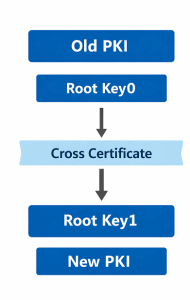
This mechanism allows certificate chain building to continue working smoothly while the PKI transitions from the old root key to the new one. Without these cross certificates, some systems might suddenly fail to build a valid chain depending on which root certificate they already trust. So while they may look a little confusing at first, these cross certificates are simply there to ensure that the rollover from the old root to the new root happens without breaking certificate validation along the way. In simple terms:
Root Key0 → Root Key1
Root Key1 → Root Key0This allows Windows to build a valid trust chain in multiple scenarios.In the next section I’ll look at a few practical scenarios where these cross certificates help Windows build a valid trust chain.
Scenario 1 – Old client trusts only the old root
In this scenario the certificate chain does not stop at the new root certificate. Instead, Windows continues building the chain using a cross certificate until it reaches a trusted root. The chain looks like this:
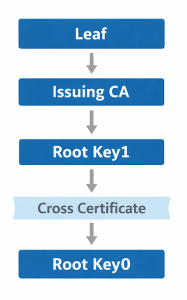
What happens here is fairly straightforward. The issuing CA certificate chains to the new root certificate (Root Key 1). However, the client may not yet trust this new root because it is not present in the trusted root store.
To solve this, Windows uses the cross certificate as a bridge. The cross certificate essentially states that the new root is trusted by the original root. Because the client already trusts Root Key 0, the chain can continue until it reaches that trusted root.
In other words, the cross certificate allows Windows to validate certificates issued under the new root, even if a system still only trusts the original root certificate.
Scenario 2 – New client trusts only the new root
In this scenario the certificate chain starts with a certificate that ultimately chains back to the original root key (Root Key 0):
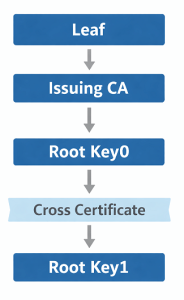
Here the client may already trust the new root certificate (Root Key 1) but not necessarily the original root. Windows therefore uses the cross certificate to extend the chain from the old root to the new one.
The cross certificate effectively acts as a bridge, allowing the trust relationship to continue until the chain reaches Root Key 1, which is present in the client’s trusted root store. This ensures that certificates issued before the rollover remain valid even on systems that only trust the new root certificate.
In both scenarios the cross certificates act as a bridge between the old and the new root key. They allow Windows to build a valid certificate chain regardless of which root certificate a system currently trusts.
This mechanism ensures that a Root CA rollover does not suddenly break certificate validation. Systems that still trust the original root can validate certificates issued under the new root, while systems that already trust the new root can still validate certificates that chain back to the old one.
In short, cross certificates make the transition between root keys smooth and transparent, allowing the PKI to evolve without disrupting existing trust relationships.
The case of the multiple CRL files
You will also notice two CRL files:
Corp-Root-CA.crl
Corp-Root-CA(1).crlThe explanation is rather simple, this is because each Root CA key pair maintains its own revocation list. Taking a look at the revocation location will show you the location and the extension (1) to the file name, so:
Root Key0 → Corp-Root-CA.crl
Root Key1 → Corp-Root-CA(1).crlBoth must remain available during the rollover period.
What needs to be published
This is the easy part, remember that the Root CA certificate needs to end up in the trusted root store of each Endpoint, for Domain Joined Windows machines it’s as easy as publishing it to the directory. The former certificate is already there, so all you need to do is use dspublish and upload the new root certificate.
certutil -dspublish -f Corp-Root-CA(1).crtAll other devices, such as Intune-managed systems, network appliances, and Linux machines, will also need to receive the new Root CA certificate. Make sure you plan enough time to distribute and deploy it across these platforms. As long as the devices support certificate chain building with cross certificates, as described in the previous section, the transition should work without issues.
Publish to AIA / CDP distribution points
Your web-based PKI distribution point should now contain:
Corp-Root-CA.crt
Corp-Root-CA(1).crt
Corp-Root-CA(0-1).crt
Corp-Root-CA(1-0).crt
Corp-Root-CA.crl
Corp-Root-CA(1).crlThese files allow clients to retrieve:
- Root certificates
- Cross certificates
- Revocation lists
which are all necessary for proper certificate chain validation.
Verifying the root certificates in Active Directory
After publishing the new Root CA certificate to Active Directory, it’s a good idea to verify that domain members can actually see it.
A simple way to do this is with the following command:
certutil -enterprise -viewstore rootThis command queries the Enterprise Trusted Root Certification Authorities store, which is populated through Active Directory. If the publication was successful, you should now see both root certificates listed.
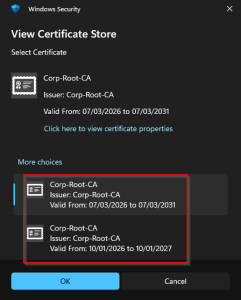
The presence of both certificates is expected during a root rollover. The original root certificate remains available so that certificates issued before the renewal can still build a valid chain, while the new root certificate is used for certificates issued going forward. If the new root certificate does not appear in the output, it may indicate that:
- the certificate was not published correctly to Active Directory
- Active Directory replication has not completed yet
- the client has not refreshed its certificate store
In that case, forcing a Group Policy update can help refresh the local trust store. This is a quick and reliable way to confirm that the new Root CA certificate has been successfully distributed within the domain.
Verifying new certificates
A quick way to confirm that chain building works correctly is using:
certutil -verify -urlfetch certificate.ceror:
certutil -URL certificate.cerThis allows you to verify:
- which trust chain Windows selects
- whether CRLs are reachable
- whether the AIA and CDP locations are functioning correctly
A word on PKIView
PKIView will show the CA hierarchy and automatically check whether the published CRL and AIA locations are accessible. If everything is configured correctly, the status indicators should appear green.
It is important to understand that PKIView primarily shows the currently active CA certificate used by the CA service. During a root rollover you may therefore still see the original root certificate listed, even though the new root certificate has already been published to Active Directory.
For that reason, PKIView should be used as a health check for your PKI distribution points, while commands like certutil -enterprise -viewstore root are better suited to verify that the new root certificate is actually present in the enterprise trust store.
Cleaning up the old root artifacts
Eventually there will come a time when the original Root CA certificate and the related rollover artifacts are no longer required. However, this cleanup should only be performed once you are certain that nothing in your environment still depends on them. The original root certificate should remain available as long as there are certificates that still chain back to it. In practice, this usually means waiting until all certificates issued under the old root have expired.
The same applies to the original CRL. Since revocation checking may still occur for certificates issued before the rollover, the old CRL should remain accessible until those certificates are no longer valid. The cross certificates serve only as a bridge during the transition between the old and the new root key. Once all certificates in your environment chain directly to the new root and the old root is no longer required, these cross certificates can safely be removed as well.
In short, cleanup is only safe once the old trust chain is no longer needed anywhere in your environment. Until then, it is better to leave these artifacts in place to avoid unexpected certificate validation issues.
What comes next?
Renewing the Root CA does not immediately change your entire PKI hierarchy. Existing certificates will continue to chain to the original root until they expire. At some point, the next logical step is renewing your Issuing CA certificate, allowing newly issued certificates to chain directly to the new Root CA key.
But that’s a topic for another post.
Leave a Reply