We often associate Conditional Access with Entra ID, Cloud apps, and Zero Trust.
But long before cloud-native policy engines existed, Windows already had a way to enforce identity-based access between endpoints, and I mean really long ago. I would make the claim that we could go back to February of the year 2000, when Windows 2000 saw the light of day. Years later in the era of Windows Vista and Windows 7, we got the Windows Advanced Firewall and that can do so much more than just block or allow a port, I think it’s a really cool piece of software. The combination of Windows Firewall, Kerberos and IPsec effectively gives you on-prem Conditional Access for east-west traffic. In this post I’ll tell you a bit of history, which problems my blog solves and why you want to start using it. And for the folks that see the word “IPsec”, trust me, I’ll make it easy to use, promise!
Let’s dive in!
Conditional access before the cloud
When we hear the term Conditional Access, most of us immediately think about Microsoft Entra ID, MFA requirements, device compliance, sign-in risk, and SaaS applications. It feels like a Cloud-native concept, something that was born in the era of Zero Trust, modern identity, and policy engines capable of evaluating every sign-in in real time. But what if I told you that Windows has had a remarkably similar capability for years, like for 25 years and almost nobody is even aware of it anymore? The legacy dude to the rescue!
Long before Conditional Access became a cornerstone of Cloud security, Windows already offered a way to make identity-based access decisions between endpoints. Not for SaaS applications, but for the protocols attackers rely on most once they land inside the network: RDP, WinRM, SMB, LDAP, RPC, and other east-west management paths. This is where the combination of the Windows Defender Firewall, Kerberos, and IPsec becomes far more powerful than most environments realize, and it’s free!
Instead of making access decisions based purely on source IP addresses or network segments, Windows can evaluate who the user is, which device they are using, which target they want to reach, and which protocol or port is involved. In other words:
The combination of Windows Firewall, Kerberos and IPsec effectively gives you on-prem Conditional Access for east-west traffic.
That changes the security conversation completely. A compromised workstation or server no longer automatically becomes a launchpad for unrestricted reconnaissance. Stolen credentials no longer guarantee usable access from any random endpoint. Even highly privileged identities can be restricted so they only work from approved administrative workstations, management servers, or dedicated Privileged Access Workstations (PAWs). This is especially relevant in modern Active Directory attack chains.
Most real-world intrusions do not begin with a Domain Controller compromise. They begin with a user clicking a malicious attachment, enabling macros, or executing a payload that gives the attacker code execution on a single workstation (I’m looking at you admins who browse the Internet from a server!). From there, the attacker performs authenticated reconnaissance, enumerates administrative paths, identifies privileged users, and starts moving laterally through protocols that are often still implicitly trusted inside the LAN. That trust model is exactly what this approach challenges. I’ve demonstrated such an attack in the video below, just to give you an idea of the anatomy of a attack.
By binding Windows Firewall rules to IPsec-authenticated computer and user identities, we can transform traditional host firewalling into something much closer to a modern policy engine, for example:
- only Tier 0 admins may RDP to Domain Controllers
- only PAWs may initiate WinRM to management servers
- only backup servers may access backup repositories
- only application servers may query SQL over specific ports
The policy decision is no longer, “Is this IP address allowed?”, The real decision becomes: “Is this the right user, on the right device, reaching the right service? Do you see the connection to Conditional Access? It’s just not in the Cloud, but on-prem, how cool is that!
And that is exactly why endpoint and server isolation with Windows Firewall and IPsec remains one of the most underrated security controls available in an on-prem Active Directory environment.
Traveling over the attacker’s highway
For years, most organizations have invested heavily in north-south security controls. Perimeter firewalls, secure web gateways, email filtering, EDR, MFA, and increasingly strong Conditional Access policies have significantly raised the bar for attackers trying to enter the environment from the outside. And yet, once an attacker lands on a single internal workstation or server, the story often changes completely. Inside the LAN, trust is still everywhere. I know so many organizations that have excluded their entire corporate network from MFA requirements because it’s safe, sigh…
A compromised endpoint can frequently reach other workstations and servers over SMB, RPC, WinRM, WMI, RDP, LDAP, or remote service management interfaces without meaningful restrictions. These management paths were designed for operational efficiency, but in modern attack chains they have effectively become the attacker’s highway. This is what makes east-west traffic so dangerous.
The attacker does not need Domain Admin rights on day one. In many environments, a standard user context is already enough to begin authenticated reconnaissance. Domain-joined systems often expose enough information through default Windows protocols to allow service discovery, local admin path analysis, and privilege escalation route mapping. This is exactly why tools like BloodHound or ADelag are so effective. Once the first machine is compromised, the attacker starts asking questions:
- Which systems expose SMB or RPC?
- Which hosts allow WinRM?
- Where are privileged users logged on?
- Which servers accept RDP?
- Which service accounts have local admin rights?
- Which paths lead to Tier 0?
In many environments, the answer is surprisingly scary, “almost everything is reachable from almost anywhere”. That is the real issue.
The network may be segmented at the VLAN level (hopefully with a intermediate firewall), but the endpoint trust boundary is often missing entirely. This becomes especially dangerous in Active Directory environments, where legitimate administrative protocols are also the preferred protocols for lateral movement. A single compromised workstation can be used to:
- enumerate admin shares
- perform remote service creation
- use PowerShell remoting
- dump LSASS remotely (this has improved significantly over the years)
- move laterally with Pass-the-Hash
- enumerate SPNs
- query LDAP for privileged groups
- identify delegation paths
- locate Domain Controllers
All of this happens over normal, trusted east-west management traffic. That is why attackers love default Windows openness. Check out the demo video I’ve created a few years ago, it’s the practical implementation of what I showed in the video above.
The operating system ships with highly capable remote administration features, which is great for defenders and administrators, but equally useful for adversaries. If every workstation can freely talk to every other workstation over management protocols, the first compromised endpoint immediately becomes a reconnaissance platform and lateral movement hub. This is also where the traditional “castle-and-moat” model starts to fail.
The perimeter may be strong, but users are the new perimeter.
A single phishing click, malicious macro, browser exploit, or token theft event can place the attacker directly inside the most trusted zone of the network, the internal LAN. From there, east-west trust does the rest. This is why endpoint isolation matters so much. Instead of assuming every internal system should be able to reach every other internal system, we flip the trust model:
- workstations should not freely manage workstations
- only approved admin devices should reach management ports
- only specific servers should reach service endpoints
- only privileged identities from trusted endpoints should access Tier 0
Once you enforce those boundaries at the endpoint level, the attacker’s assumptions begin to break.
We are not here to stop them, we are here to annoy the heck out of them!
The first workstation they compromise no longer gives them immediate visibility into the rest of the environment. Their ability to enumerate, pivot, and replay credentials becomes dramatically more difficult because the network itself is no longer implicitly trusted. That is the real value of east-west endpoint isolation. It does not prevent compromise. It prevents one compromised endpoint from becoming an organizational compromise.
Windows firewall, the forgotten segmentation layer
The Windows Firewall has a reputation problem. For many administrators, that reputation was shaped in the Windows XP era, and honestly, that reputation was not entirely undeserved. Microsoft first introduced the built-in host firewall in a broadly usable form with Windows XP Service Pack 2. At the time, it was a major step forward for endpoint security, but operationally it was still fairly limited. Management options were basic, visibility was minimal, and the rule model was largely focused on simple inbound port exceptions. It worked, but it was far from elegant. The real shift happened later.
With Windows Vista SP1 and Windows Server 2008, Microsoft introduced Windows Firewall with Advanced Security (WFAS), which fundamentally changed the way host firewalling could be used inside enterprise environments. For the first time, defenders had a unified management plane that combined:
- stateful firewalling
- inbound and outbound filtering
- profile awareness
- Group Policy management
- logging
- connection security rules
- IPsec integration
- service hardening
- authentication-aware rules
By the time Windows 7 and Windows Server 2008 R2 became mainstream, the platform had matured into something genuinely powerful, a centrally manageable endpoint segmentation layer that could be deployed consistently across Active Directory environments. That modernization is the reason this control deserves a second look today, at least I think so.
Because while network segmentation often depends on VLAN design, ACL ownership, or infrastructure teams, Windows Firewall lives exactly where the attacker operates, on the endpoint itself, and that matters. Unlike a network firewall that only sees traffic crossing defined boundaries, the host firewall evaluates traffic at the destination system. That means the control remains effective even when two systems live in the same subnet, the same VLAN, or even the same server rack. This is where east-west segmentation becomes practical. A modern Windows Firewall deployment should start with a simple but powerful baseline:
- Inbound: Block (default)
- Outbound: Allow (default)
- Logging: dropped and successful connections
- Rule merging: disabled
- Group Policy or Intune as the authoritative source
This immediately changes the attack surface. Instead of allowing every workstation to accept unsolicited SMB, RPC, or WinRM traffic, the endpoint itself decides whether the connection is expected, trusted, and policy-compliant. The beauty here lies in stateful inspection, something that is still often misunderstood.
A workstation can operate in a default deny inbound model while continuing to function normally because the firewall tracks sessions. If the client initiates traffic to a Domain Controller for Group Policy, LDAP, or Kerberos, the return traffic is automatically allowed because the session state already exists. That means we do not need to open inbound ports simply for normal client behavior. This is one of the most important mental shifts in host firewall design:
clients usually need to initiate communication, not receive unsolicited management traffic from every peer in the environment.
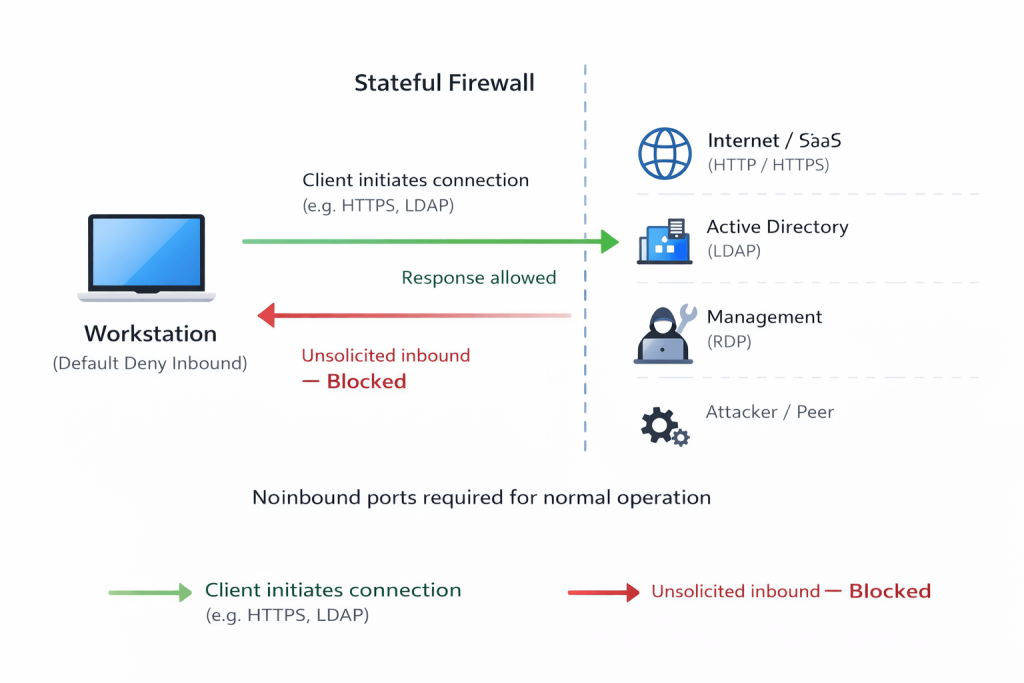
That alone breaks many common lateral movement assumptions. It also creates one of the most valuable security telemetry sources defenders often ignore: Windows Firewall logging.
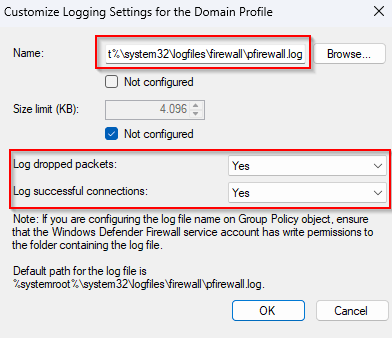
Even before enforcing a single block rule, enabling logging for both successful and dropped connections gives you a historical record of east-west communication patterns. In practice, this often becomes the fastest way to discover:
- undocumented legacy dependencies
- shadow IT management tools
- remote admin habits
- application port requirements
- suspicious peer-to-peer workstation traffic
This telemetry-first approach is what makes safe adoption realistic. Did you know that, for example (and this is for all of you who have turned off the Windows firewall), you can enable the firewall, set a any:any rule and enable logging! In that case all the traffic is logged and you have a working firewall… kind of…. well it doesn’t block anything, but that’s besides the point.
But there is one setting that often determines whether a firewall deployment remains secure over time and that’s rule merging. If local firewall rules and application-created exceptions are allowed to merge with centrally managed Group Policy rules, the endpoint slowly drifts away from your intended segmentation design. A locally installed application, admin troubleshooting action, or overly broad software installer exception can silently reopen exactly the paths you were trying to close. That is why mature environments treat, or should treat the Windows Firewall not as a convenience feature, but as an authoritative segmentation layer. All these setting can be located in the GPO Firewall settings at:
Computer Configuration → Policies → Windows Settings → Security Settings → Windows Defender Firewall with Advanced Security → Windows Defender Firewall with Advanced Security – LDAP.
Right click and select “Properties”. On each Firewall profile page, enable the “Logging” setting by clicking “Customize” at the end of the screen and setting the page exactly as seen in the image below.
And once that foundation is in place, IPsec turns it into something even more powerful, identity-aware endpoint segmentation! Which is where the idea of on-prem Conditional Access truly begins.
The IPsec capability most environments never use
For many administrators, IPsec still carries legacy baggage. More often than once they scratch their heads when it doesn’t work the first time, and simply move on. The term alone immediately brings back memories of overly complex MMC consoles, difficult certificate dependencies, broken traffic flows, and the very real fear of accidentally isolating systems from the network entirely. That fear made sense in the past.
Older implementations often felt disconnected from the rest of the Windows management experience. Policies were harder to reason about, troubleshooting was painful, and many organizations simply concluded that IPsec was “too complicated” unless it was used for VPN scenarios. But the modern Windows implementation tells a very different story.
Since the introduction of Windows Firewall with Advanced Security, IPsec became a native part of the same management plane used for host firewalling. The same Group Policy object that defines your inbound and outbound filtering can also define Connection Security Rules, authentication methods, trust boundaries, and secure access requirements. That architectural change is what transformed IPsec from a niche networking feature into a practical identity-based access control layer for east-west traffic. And this is where most environments leave value on the table. Because when people hear IPsec, they often think, encryption!
But for endpoint isolation, encryption is often not the most important feature at all. The real superpower is authentication-aware traffic authorization (see where I’m going?). With Connection Security Rules, two systems first establish whether they trust each other before the application traffic is allowed. During that process, Windows can validate:
- the computer identity
- the user identity
- the Kerberos trust path
- the target endpoint
- the protocol and port in use
- optional integrity or encryption requirements
That means the question changes from, “Can this IP address reach TCP 3389?” to, “is this an approved Tier 0 admin, on an approved PAW, allowed to use RDP against this Domain Controller?“…. conditional access anyone?
That is a fundamentally different control model. And the best part is that it often works without encrypting the application payload at all. And did I already mention that it’s free as well? Well if you payed for the Windows license, but I’m assuming you did. Below is an image representing the various options there are with IPsec.
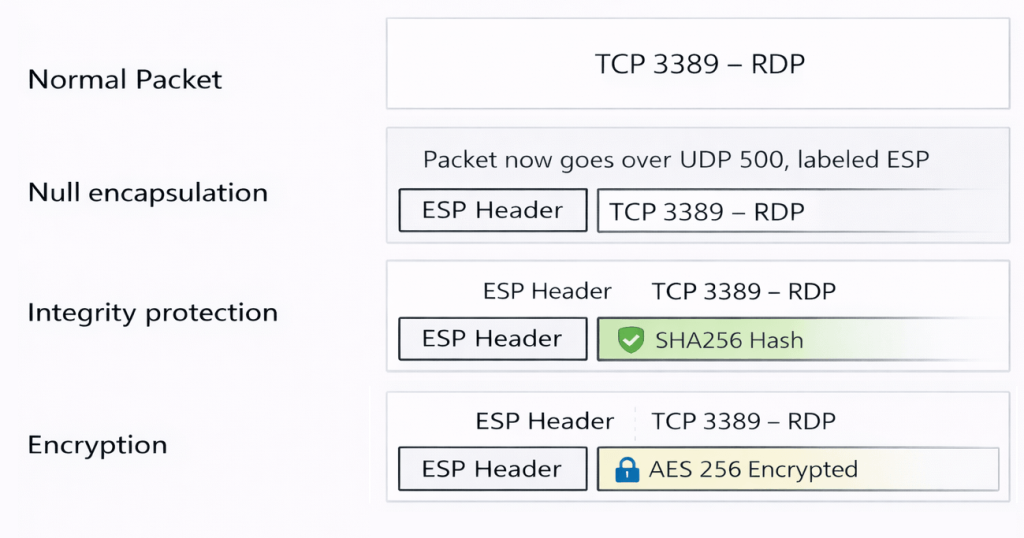
As shown in the image above, a regular RDP connection simply uses TCP 3389 to establish a session. Nothing unusual there, just standard application traffic flowing between client and server. Things become more interesting once IPsec comes into play.
With null encapsulation enabled, the traffic is no longer just a plain TCP session. Before the actual RDP traffic is allowed, both systems first establish an IPsec Security Association. As part of this process, an ESP (Encapsulating Security Payload) header is added to the packet, and the communication is negotiated over UDP 500, which is used for key exchange and authentication. At this stage, the important part is not encryption, but identity validation. This is what makes null encapsulation such an underrated capability. You still get:
- authenticated endpoints
- enforced access control
- and full visibility for packet inspection tools
without introducing encryption overhead. Both systems authenticate each other using Kerberos per default, verifying the computer identity and optionally the user identity. Even though the original RDP payload remains unencrypted, the connection itself is now bound to a trusted and authenticated context. In other words, the packet is allowed not because of where it comes from, but because of who initiated it. Other authentication methods are available as well such as NTLMv2, a pre-shared keys or…. yes here we are again, certificates! I would highly discourage you from using the first two options. I’ll write a blog on using certificates somewhere in the future. For now it’s important that you know these options exist.
This is the exact point where the host firewall evolves into policy-driven access control between endpoints. It is also why this control aligns so well with modern tiering and Privileged Access Workstation designs. A stolen privileged credential is no longer enough. The attacker also needs access to the approved trusted device identity capable of successfully negotiating the Connection Security Rule and satisfying the secure inbound firewall requirement. That dramatically changes the blast radius of credential theft. And once you start thinking in those terms, it becomes clear: “this is not really about IPsec.“.
It is about bringing identity to east-west traffic enforcement inside Active Directory. That is the hidden capability most environments never use.
This is effectively on-prem conditional access
What makes Conditional Access so powerful in Cloud identity platforms is not simply that it blocks or allows access. The real strength lies in the context of the decision. Access is no longer a binary outcome, but the result of evaluating multiple conditions at once. Who the user is, whether MFA was performed, which device is being used, whether that device is compliant, where the request originates from, which application is being accessed, and even what level of risk is associated with the session, all of these signals contribute to a single decision.
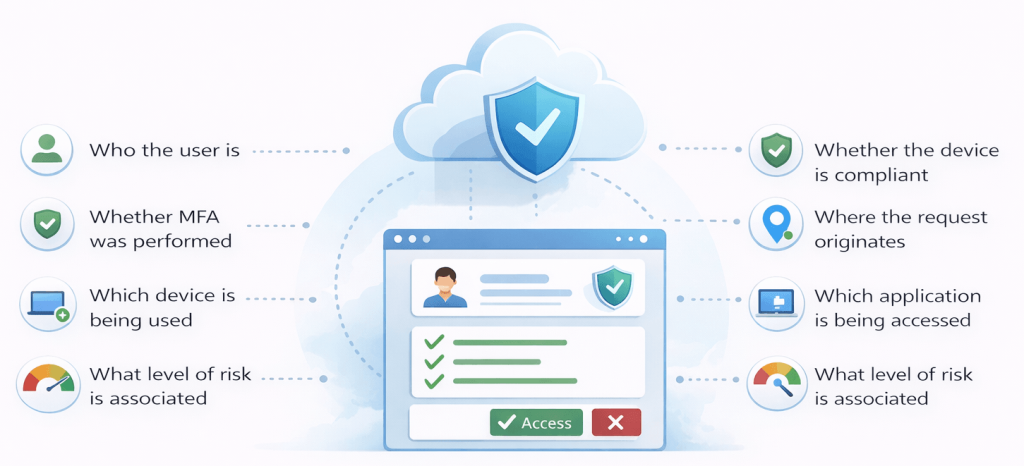
That is what transformed identity from a static authentication event into a policy engine.
Now take that same way of thinking and apply it to the on-premises world.
Inside a traditional Active Directory environment, east-west traffic has historically been governed by much simpler logic, source IP, destination IP, protocol, and port. That model still works, but it lacks something very important, identity context. It assumes that anything inside the network is implicitly trusted, both in terms of endpoints and credentials. The combination of Windows Defender Firewall, Kerberos, and IPsec Connection Security Rules changes that assumption completely.
Instead of making decisions based purely on network location, the system can now evaluate who is making the connection, from which device, towards which system, using which protocol, and under which conditions. It can verify whether the device belongs to an approved group, whether the user identity matches policy, and whether a secure, authenticated channel has been successfully established before allowing the traffic at all. That is why I describe this as:
Contextual, identity-based on-prem security
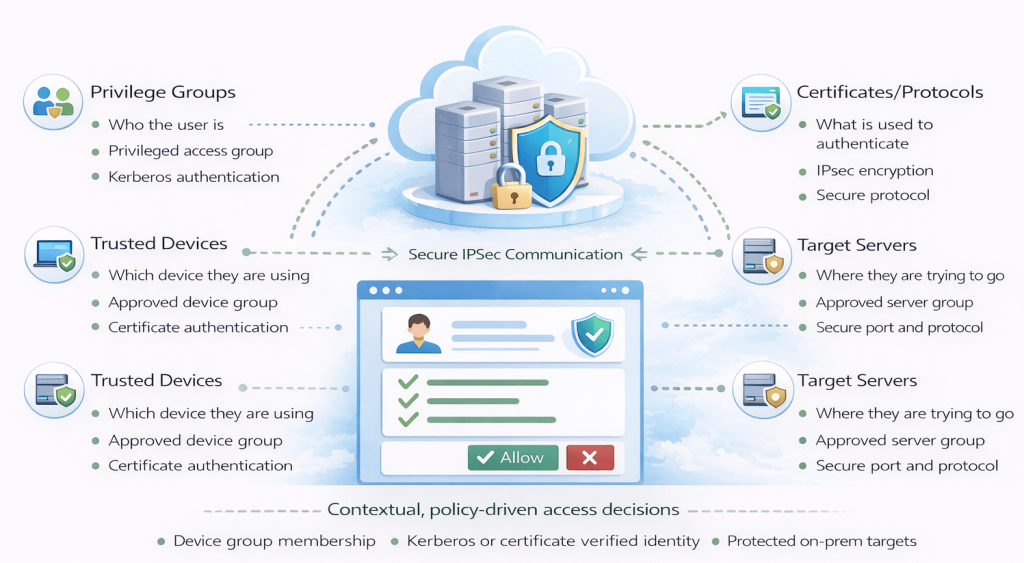
The decision is no longer based on location alone. It is based on identity, device trust, target sensitivity, and protocol intent. Take a simple example.
A Tier 0 administrator wants to RDP to a Domain Controller. In a traditional setup, the rule might simply allow TCP 3389 from a specific subnet or in worst case from anywhere. That works, but only as long as the environment remains perfectly static. In reality, devices move, IP addresses change, VPN ranges shift, and new systems appear in places where they were never intended to be trusted. Now compare that to an IPsec-backed secure firewall rule.
Instead of trusting the network, the rule can enforce that access is only allowed if the user is a Tier 0 administrator, the device is a member of the PAW group, and the target is a Domain Controller. Suddenly, the decision is no longer about where the traffic comes from, but about whether the combination of identity and device meets the required conditions. That is not network segmentation, that is identity-enforced access policy. And once you look at it that way, the similarity with modern Conditional Access becomes obvious. The cloud version asks:
Is this the right user on the right device accessing the right application?
The on-prem version asks:
Is this the right user on the right workstation accessing the right protocol on the right server?
Same logic. Different control plane. This is why the phrase “On-Prem Conditional Access” is more than just a catchy title. It provides a useful architectural lens. It helps shift the conversation away from traditional firewall thinking and towards trust decisions based on identity and context. The moment you start designing policies around privileged identities, trusted administrative devices, management tiers, secure protocols, and server roles, you are no longer just filtering traffic. You are defining who is allowed to do what, from where, and under which conditions.
And just like in the cloud, this enables a much more granular approach to access control. You can define that only PAWs may RDP to Tier 0 systems, only patch servers may access administrative units, only backup infrastructure may reach repositories, only application tiers may connect to SQL, or only designated management hosts may use WinRM. The same pattern can be applied across your entire environment.
This is where the design becomes especially powerful in mature Active Directory environments, particularly when combined with concepts like administrative tiering, Privileged Access Workstations, Just Enough Administration, Credential Guard, and dedicated management infrastructure. The real outcome is not just stronger segmentation, It is identity-bound blast radius reduction. A stolen credential alone no longer guarantees access. The attacker must also satisfy the device trust condition, which is often significantly harder to compromise.
And that is exactly the same strategic advantage Conditional Access provides in the Coud. The difference is that here, the enforcement starts directly on the endpoint.
Let’s do this! Only PAWs may RDP to Domain Controllers
Let’s make the concept above something we can actually start using. One of the strongest real-world use cases for on-prem Conditional Access between endpoints is protecting RDP access to Tier 0 systems, especially Domain Controllers. The security objective for this setup is simple:
A Tier 0 administrator should only be able to RDP to a Domain Controller from an approved Privileged Access Workstation (PAW).
Not from their daily workstation, not from a jump box outside the trusted tier, not from a random server where their credentials were reused. Only from the trusted device boundary you explicitly define. This is where the combination of Windows Defender Firewall and IPsec Connection Security Rules becomes extremely practical. I choose RDP specifically because not only is RDP the acronym for “Remote Desktop Protocol”, it’s more commonly known as the “Ransomware Deployment Protocol”, as it’s often used for the delivery of a malicious payload.
Step 1 – Define the trust boundary
Before touching Group Policy, define the security model first. You need three trust anchors:
1. Tier 0 admin identities
Create or reuse a dedicated group, for example:
Tier0-RDP-Admins
This group should contain only the identities allowed to establish interactive RDP sessions to Domain Controllers.
2. PAW computer group
Create a computer group containing only approved privileged workstations:
Tier0-PAW-Devices
This is the critical device trust boundary. A stolen admin password alone should never be sufficient.
3. Target scope
Your Domain Controllers and other important Tier 0 assets should ideally already be isolated in a dedicated Tier 0 OU, such as:
OU=Admin Workstations,DC=corp,DC=michaelwaterman,DC=nl
This OU becomes the GPO boundary for the secure inbound rule. However, do not, like ever, move your Domain Controllers outside of the Domain Controllers organizational unit, this will break stuff. Leave them be.
Step 2 – Create the connection security rule GPO
Create a new GPO linked to:
- the Domain Controller OU (target)
- the PAW OU (source)
I’ve named my policy “CORP – Windows Firewall Isolation Policy“. Both sides must understand the same trust agreement, aka speak the same language. Just remember that both sides need to have the same configuration. Navigate to:
Computer Configuration → Policies → Windows Settings → Security Settings → Windows Defender Firewall with Advanced Security → Windows Defender Firewall with Advanced Security – LDAP → Connection Security Rules → New Rule
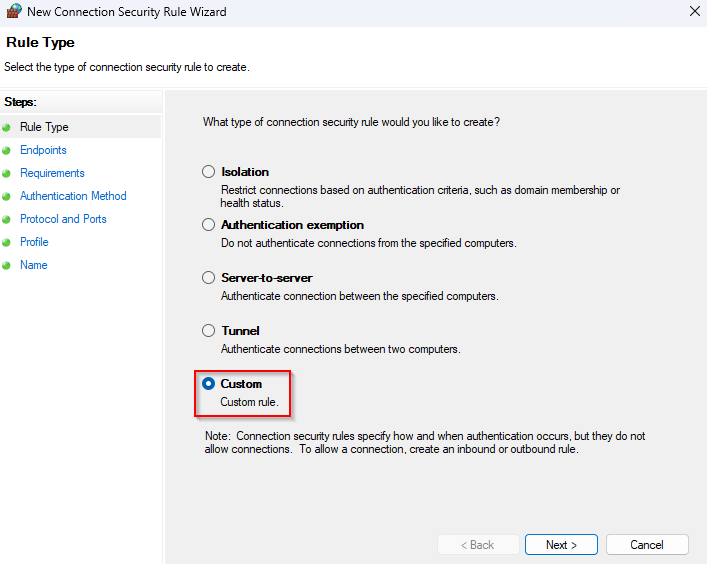
In the “New Connection Security Rule Wizard“, select “Custom“, Click “Next“
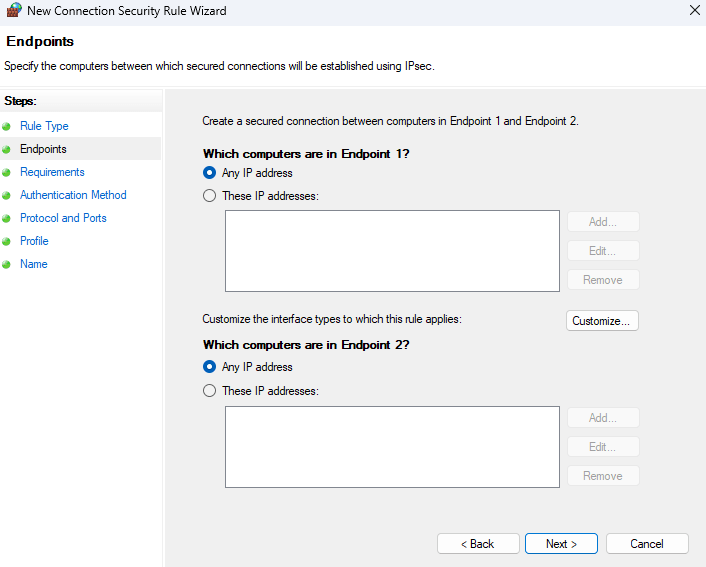
Don’t add the IP addresses in this section. Remember that this will apply to both the Domain Controller and the PAW. Click “Next“.
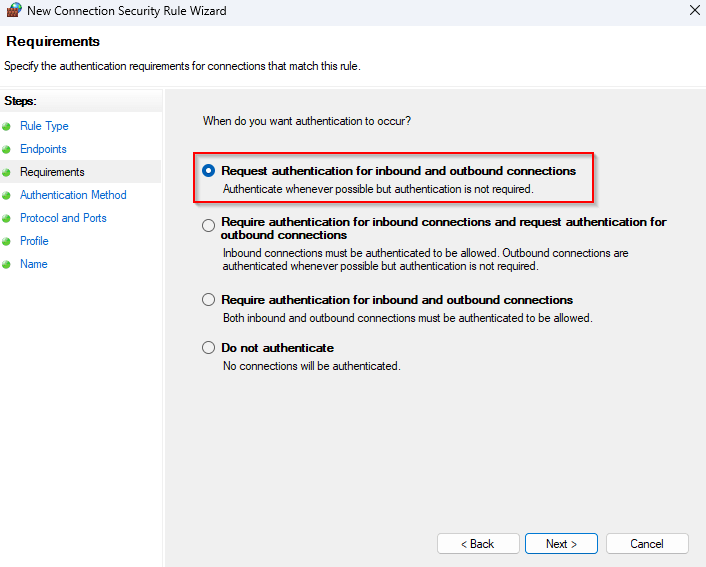
Select “Request authentication for inbound and outbound connections“. This is the place where the esp header of IPsec comes into play. We want to start out with just authentication before we do any fancy stuff like integrity and encryption. Click “Next“.
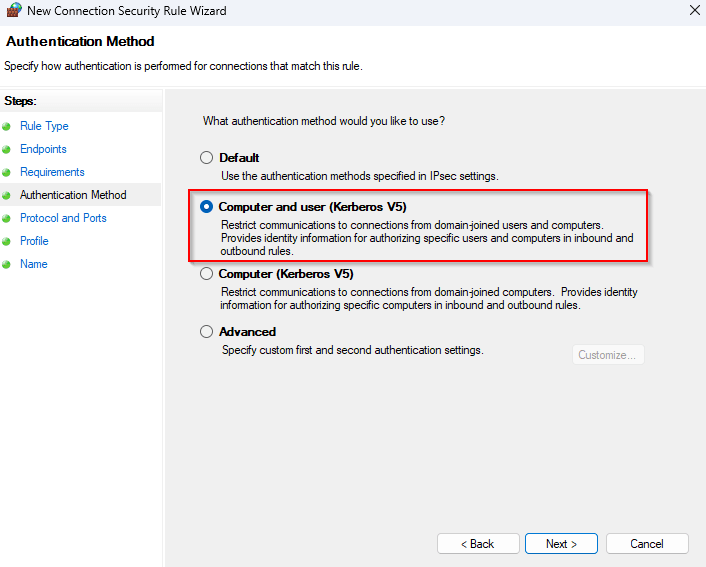
Select “Computer and user (Kerberos V5)“. Since we are operating in a domain we want to leverage the default authentication and force Kerberos. Remember that the esp header contains both the user and computer authentication. When you’re more familiar with isolation policies it’s a good idea to add integrity and encryption. For now this is a great starting point. Click “Next“.
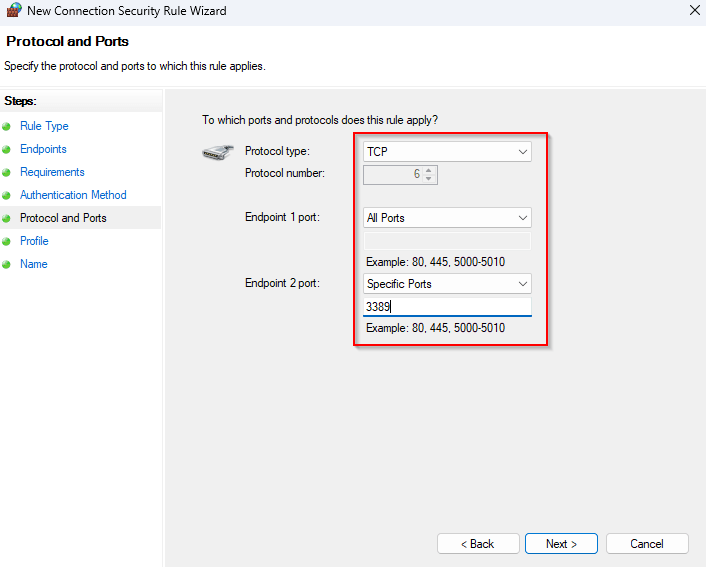
On this page, select TCP as the protocol type and define a specific port for RDP as the Endpoint 2 port. In this case the second endpoint is always the one you’re connecting to. The initiator (endpoint 1) will use a high number for a local port and connect to a predefined protocol port on the other computer, for RDP this is port number 3389. Click “Next“.
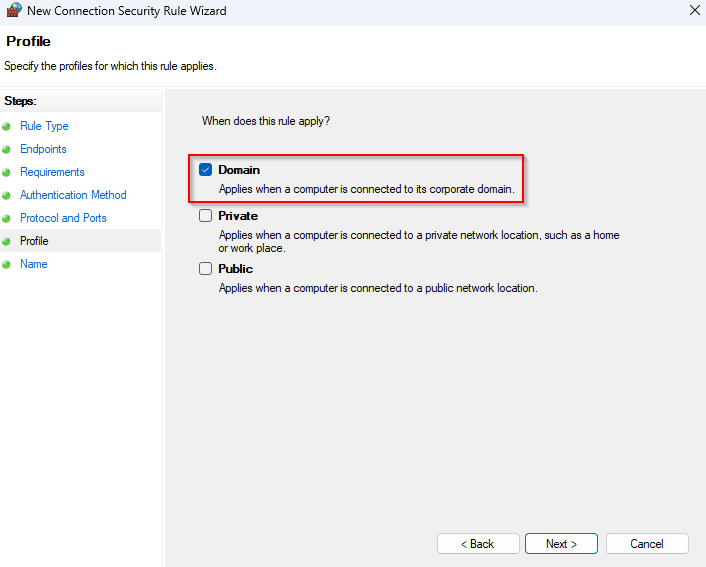
As your servers don’t travel that much, it’s recommended to select the “Domain” profile only. Normally Domain is enough, but this prevents operational issues when “Network Location Awareness” behaves unexpectedly. It’s up to you if you want it to be applied to all domains, it doesn’t really matter that much for static machines. Click “Next“.
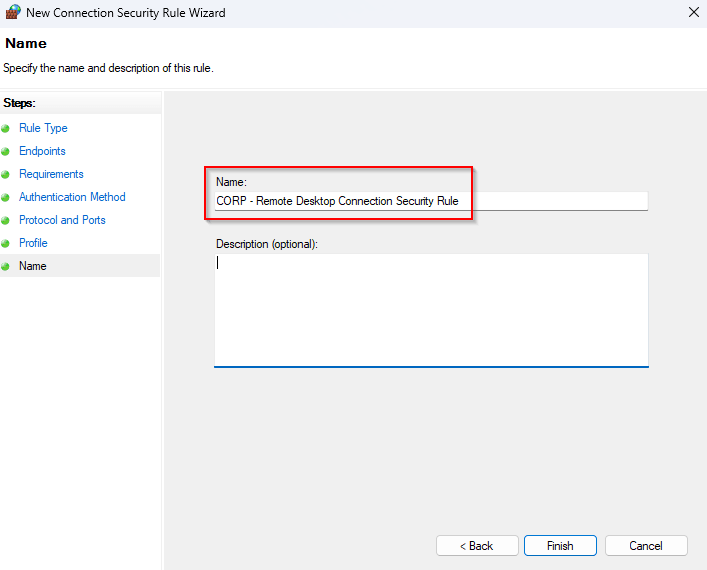
Name the connection rule and click, “Finish“
Step 3 – Bind RDP to secure identity conditions
Now the actual enforcement layer. First, link the “CORP – Windows Firewall Isolation Policy” to the Domain Controllers organizational unit. Remember that all parties need to have the same configuration. Next, create a new policy that will host the Windows Firewall config. I’ve named mine “CORP – Windows Firewall Configuration“. (I know, I’m not very creative in these things). Just as before go to:
Computer Configuration → Policies → Windows Settings → Security Settings → Windows Defender Firewall with Advanced Security → Windows Defender Firewall with Advanced Security – LDAP → Inbound Rules
Right click the node and select “New Rule“.
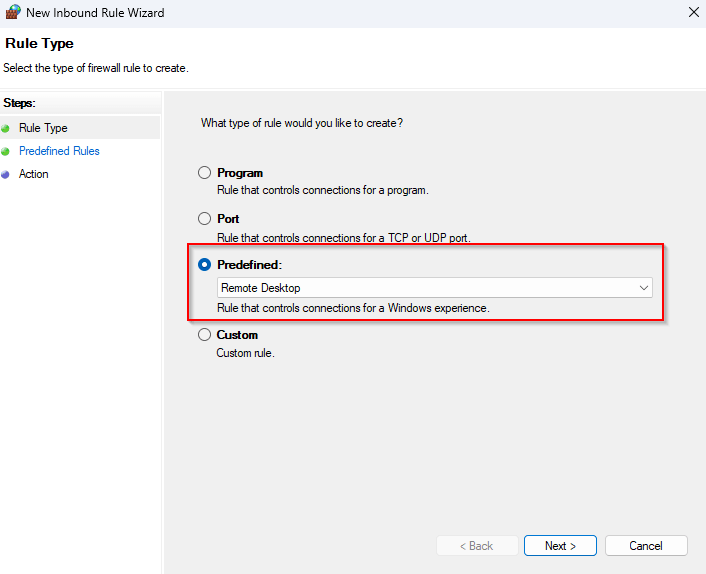
Click “Predefined” and select the “Remote Desktop” option from the drop down list, click “Next“.
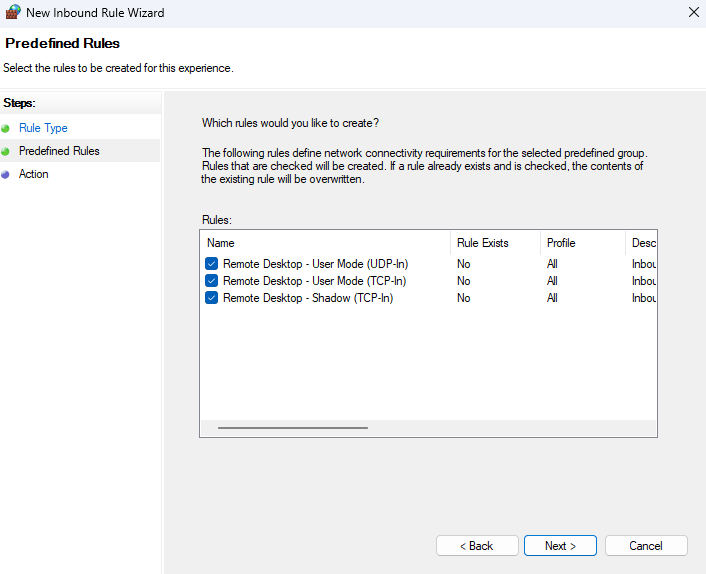
Leave the defaults and click “Next“.
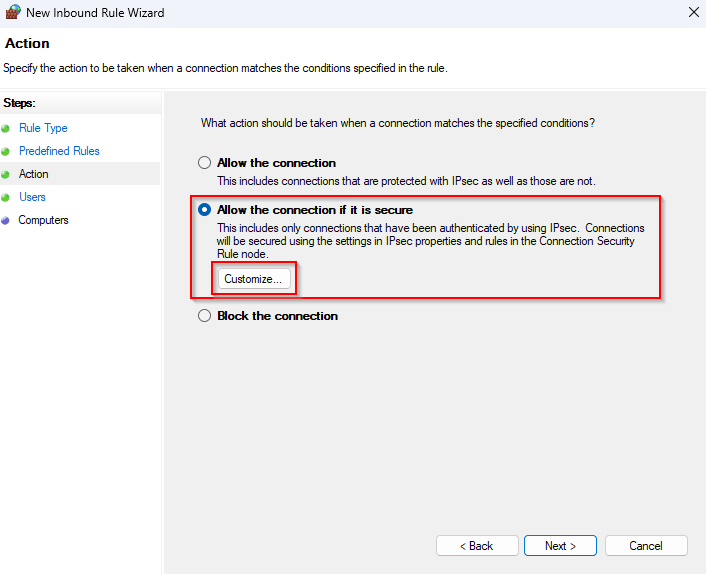
Select “Allow the connection if it is secure“, click “Customize“.
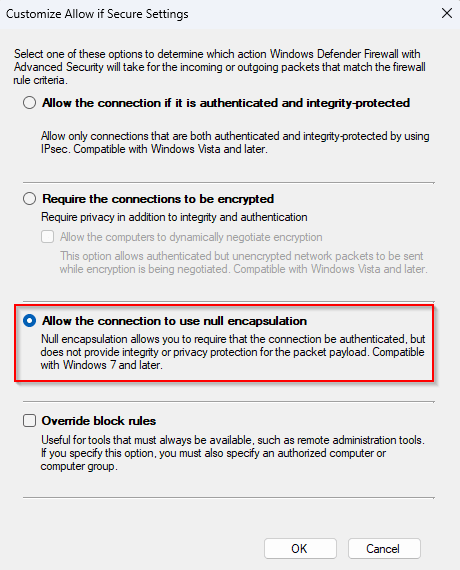
Select “Allow the connection to use null encapsulation“. This is the option that adds the ESP header where authentication information is stored (See the chapter about IPsec capabilities). Click “OK” to go back to the previous screen and click “Next“.
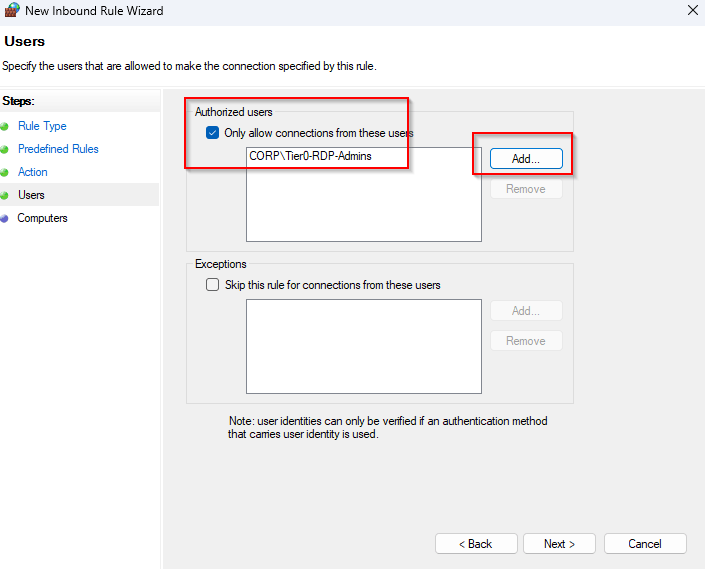
Click the checkbox net to “Only allow connections from these users“, and click add to add the (users) security group we created in the beginning. In my case it’s “CORP\Tier0-RDP-Admins“, Click “Next“.
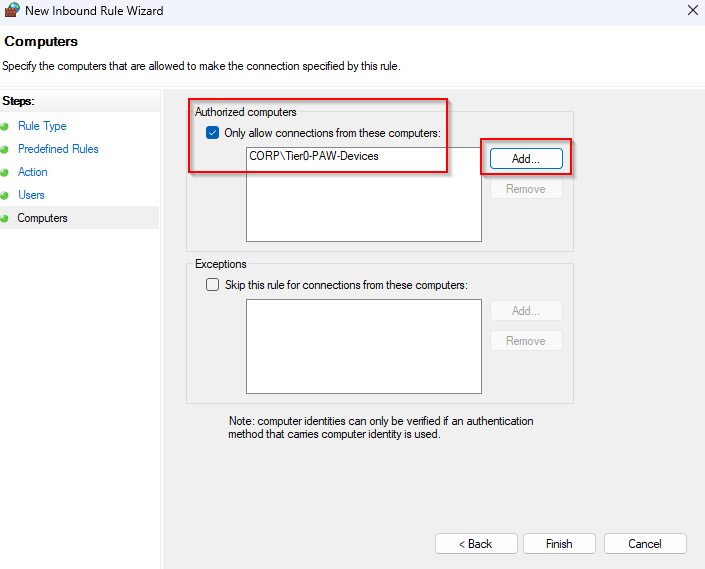
Click the checkbox net to “Only allow connections from these computers“, and click add to add the (computers) security group we created in the beginning. In my case it’s “CORP\Tier0-PAW-Devices“, Click “Finish“.
And that’s really it. Make sure that the user and computer are in the security group. Remember that a computer needs to restart before it belongs to the security group. Apply the policies on both the Domain Controllers and the PAWs, with the latter policy only on the Domain Controllers.
Step 4 – Validate the Security Association
Now that we’ve build all the rule logic, it’s time to give it a test run. Login to the PAW machine we’ve added to the security group with a user that’s part of the RDP security group. In my case that’s user “T0-ADM-01” and machine “lab-adm-001“. After the logon, start the remote desktop tool and enter the name of the Domain Controller you want to connect to. Just making a connection is sufficient, no need to logon, although you obviously could at this point. After testing the RDP connection, validate the connection by opening the Windows firewall MMC (wf.msc). Drill down to Monitoring → Security Associations. Clicking on either node, “Main Mode” or “Quick Mode” will reveal the current connection that’s been established for the IPsec connection, this place is actually very useful for troubleshooting and seeing which policies are applied.
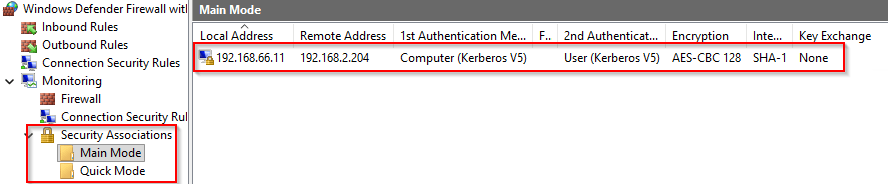
This is your best proof that the policy works as intended. Whoop Whoop!
Main Mode vs Quick Mode
While testing IPsec-based endpoint isolation, one of the most valuable troubleshooting and validation steps is checking the Security Associations (SAs) in the Windows Firewall monitoring console. You will typically see two types:
- Main Mode Security Association
- Quick Mode Security Association
These can look abstract and a bit difficult to read. In reality, they represent two distinct phases in how IPsec establishes trust and protects communication.
Main Mode SA, establishing trust between devices
The Main Mode Security Association is the first step. This phase is responsible for:
- authenticating both endpoints
- establishing a secure channel for negotiation
- exchanging keying material
- agreeing on cryptographic parameters (even if encryption is not ultimately used)
In a domain environment, this process typically relies on Kerberos authentication as we build in our example, which allows both systems to verify each other’s computer identity (and optionally user identity). Think of Main Mode as answering the question:
“Do I trust who you claim to be?”
If Main Mode fails, nothing else happens. No trust means no communication under IPsec policy. But this is kinda applicable to both modes, they should all succeed before a successful connection can be established.
Quick Mode SA, protecting the actual traffic
Once trust is established, Quick Mode takes over. This phase is responsible for:
- defining how the actual traffic will be handled
- negotiating protection methods (encryption and/or integrity)
- binding the IPsec policy to specific protocols and ports (e.g. TCP 3389)
Think of Quick Mode as answering:
“Now that I trust you, how should we protect this traffic?”
Depending on your configuration, this can include:
- encryption (e.g. AES)
- integrity protection (hash validation)
- or no payload protection (null encapsulation)
How to use this for troubleshooting
One of the most practical advantages of working with IPsec in Windows is that it gives you something most firewall solutions don’t, visibility into the trust decision itself. When something doesn’t work, and believe me, it will at some point, the first place I always go is: wf.msc → Monitoring. Because those entries tell you exactly where in the process things are breaking down.
No Main Mode SA? You have trust issues!
If you don’t see a Main Mode Security Association at all, the conversation never even started. At that point, you’re not dealing with a firewall issue. You’re most likely dealing with a trust problem. In practice, that usually means one of a few things:
- Kerberos authentication is failing
- the systems don’t trust each other (wrong domain, broken secure channel, time skew)
- the GPO hasn’t applied as expected
- or both sides simply don’t agree on the IPsec settings
As the veterans under us know, it’s always DNS or GPO’s. Kidding aside the key takeaway here is simple:
If Main Mode doesn’t exist, identity was never established.
And without identity, there is nothing for your “on-prem Conditional Access” logic to evaluate.
Main Mode exists, but no Quick Mode? Now you have a matching problem
This is where things get a bit more interesting. You do see a Main Mode SA, which means, that authentication works as expected, but there is no Quick Mode SA. That tells you something very specific:
Trust is there, but the traffic doesn’t match your policy.
In most cases, this comes down to scoping:
- the protocol or port doesn’t match what you defined (e.g. wrong RDP port, wrong direction)
- the firewall rule isn’t aligned with the Connection Security Rule
- or the Connection Security Rule is scoped differently than you think (IP ranges, endpoints, profiles)
This is the point where you stop thinking in terms of “is it allowed?” and start thinking, “Does this traffic actually match the rule I wrote?“. An excellent place to investigate would be the Monitoring → Firewall section. That location lists all the applied polices and rules with regards to the Windows Firewall. Double clicking on your polices can reveal the current configuration.
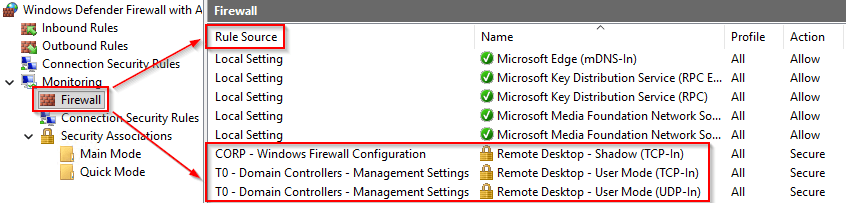
Tip! To see the source of the applied rules, click on view (on the right side of the screen) click “Add/ Remove Columns“. Click “Rule Source” in the “Available columns“, click “Add“, Click “OK“. I usually move the Rule Source to the top so it’s clear which rule we are talking about. Once you get used to reading Security Associations this way, troubleshooting becomes much more structured. You’re no longer guessing, you’re effectively walking through the decision tree:
- Do the systems trust each other? → Main Mode
- Does the traffic match the rule? → Quick Mode
- Does the policy allow it? → Firewall rule
And that aligns perfectly with the core idea behind this entire approach:
Access is not a network event anymore. It’s a sequence of identity and policy decisions. Conditional Access for on-prem devices!
Impact on the attack chain
What makes this approach so powerful is that it fundamentally changes how attackers can operate in your environment. With a single control, binding RDP access to both user identity and device identity, you already break one of the most common Tier 0 attack assumptions. An attacker may have everything they need on paper, a valid username, the password, an NT hash, a Kerberos TGT, or even local administrative rights on other systems. In a traditional environment, that is often enough to start moving towards Domain Controllers. But in this model, something crucial is missing, the device trust condition. Unless the attacker also controls an approved Privileged Access Workstation, the RDP path to Tier 0 simply can not be used. The credentials are valid, the network is reachable, the protocol is correct, and yet access is denied. That is exactly what makes this such an effective blast radius reduction control. You are no longer protecting just the account, but the combination of identity and device, which is the essence of what we described earlier as on-prem Conditional Access.
Once you understand this pattern, it becomes clear that RDP is just the beginning. The same principle can be applied across your entire administrative and service communication layer. Anywhere you have sensitive systems or protocols commonly used for lateral movement, you can introduce identity-based enforcement. Instead of allowing WinRM from anywhere, you restrict it to dedicated management hosts. Instead of exposing SMB administrative shares across the network, you limit access to patching or deployment systems. Instead of allowing unrestricted LDAP queries, you scope access to specific application tiers. The same logic extends to SQL servers, backup infrastructure, virtualization platforms, and even PKI environments, where access can be tightly bound to specific roles and trusted devices.
At that point, you are no longer thinking in terms of open or closed ports. You are defining who is allowed to perform which action, from which device, against which system, and under which conditions. The network itself is no longer the trust boundary, the identity is, and that is what transforms a built-in Windows feature into a powerful architectural control for reducing lateral movement in modern Active Directory environments.
Deployment strategy, start safe and avoid locking yourself out
One of the main reasons many organizations hesitate to use Windows Firewall and IPsec for endpoint isolation is simple, the fear of breaking things. And that fear is justified. A mis-configured policy, especially when deployed through Group Policy, can quickly lead to systems becoming unreachable or administrators locking themselves out of critical infrastructure. That is why the most important design principle here is not technical, but operational:
start safe, observe first, and enforce only when you understand your environment.
In practice, this means taking a phased approach. The first phase is all about visibility. Before enforcing anything, enable Windows Firewall logging for both successful and dropped connections and use that data to understand how systems actually communicate. This is where you discover undocumented dependencies, legacy applications, and unexpected east-west traffic patterns that would otherwise break the moment you introduce restrictions.
Once you have that baseline, you can move into a second phase where you introduce identity awareness without enforcing it yet. By configuring Connection Security Rules with “request authentication” and combining that with firewall rules set to “allow if secure,” systems will attempt to negotiate IPsec but will still fall back to normal communication if that negotiation fails. This gives you a safe way to validate your design, observe Security Associations, and confirm that the right identities and devices are being recognized, without disrupting operations. Using null encapsulation in this phase keeps things simple while maintaining full visibility into the traffic.
Only after this validation phase should you move into enforcement. This is where you start tightening the conditions by restricting access to authorized computer groups, privileged user groups, and clearly defined management tiers. At this point, the design shifts from “best effort” to actual control, and it becomes critical that your policies are clean, well-scoped, and centrally managed. Disabling local rule merging ensures that the endpoint follows your intended design and does not silently drift due to local changes or application-created exceptions.
This phased approach makes the difference between a controlled rollout and a disruptive one. It allows you to introduce identity-based access control gradually, while continuously validating assumptions and maintaining operational stability.
Common mistakes that lock admins out
Even with a phased approach, there are a few mistakes that show up again and again in real-world deployments, and most of them have the same outcome: administrators unexpectedly losing access to the systems they were trying to protect. The most common one is moving too quickly from “request” to “require” authentication. While “require” may seem more secure, using it too early means that any mismatch in configuration immediately results in blocked communication, often without a clear recovery path.
Another classic issue is not having a fallback management option. If your primary management path is protected by IPsec and something goes wrong, you need an alternative way in, whether that is console access, out-of-band management, or a separate recovery path.
Forgetting fundamental dependencies is another easy way to create problems. IPsec relies on UDP 500 for key exchange, and missing that requirement can cause negotiations to fail silently. Similarly, only configuring the Domain profile without considering Private or Public profiles can lead to inconsistent behavior when Network Location Awareness does not behave as expected.
Scoping is another area where things often go wrong. Overly broad “Any to Any” configurations defeat the purpose of the design, while overly restrictive or mismatched scopes can prevent legitimate traffic from ever matching the rule. The same applies to identity scoping, if the correct user groups or computer groups are not included, access will fail even though everything else appears to be working.
Local firewall rule merging is another frequently overlooked risk. If it remains enabled, locally created rules or application exceptions can bypass your carefully designed policies, reintroducing the very attack paths you intended to remove.
Finally, one of the most underestimated mistakes is simply not validating Security Associations. Without checking Main Mode and Quick Mode, it becomes much harder to understand whether failures are caused by trust issues, policy mismatches, or authorization conditions. Closely related to this is forgetting to include the correct PAW devices in the authorized computer group, which results in perfectly valid admin credentials being denied because the device condition is not met.
Zero Trust existed on-prem before we gave it a name
Before Conditional Access became a Cloud-native term, Windows already gave defenders a way to enforce identity-based access decisions between systems. Combined with tiering and PAWs, Windows Firewall and IPsec can dramatically reduce the blast radius of a compromised system.
This may be the most powerful Zero Trust control already present in your on-prem Active Directory environment. We didn’t invent this recently. We just stopped using it, forgot what it could do, and moved on. Sometimes, improving security isn’t about adding something new, it’s about remembering what we already had, and applying it with the lessons we’ve learned since.
As always, I hope this rather lengthy blog was useful to you. If you have any questions, feedback or remarks, please let me know. Always happy to help.
References
Demystifying the Windows Firewall
Excellent article!
One flag I’d probably mention (at least to my knowledge, correct me if I’m wrong!) is that this approach seems to be strictly for AD to AD joined machines — if you’re dealing with Azure AD joined machines with Kerberos trust.
Yes and no, it depends (isn’t is always ;-). As there’s no computer object in AD when you’re using Intune managed / EntraID joined machines, you can replace Kerberos for the computer with a certificate, that has the same effect for authentication. Same can be done for the user, but those get a kerb ticket even when not hybrid joined.